
AKT The Fusion Manuel utilisateur
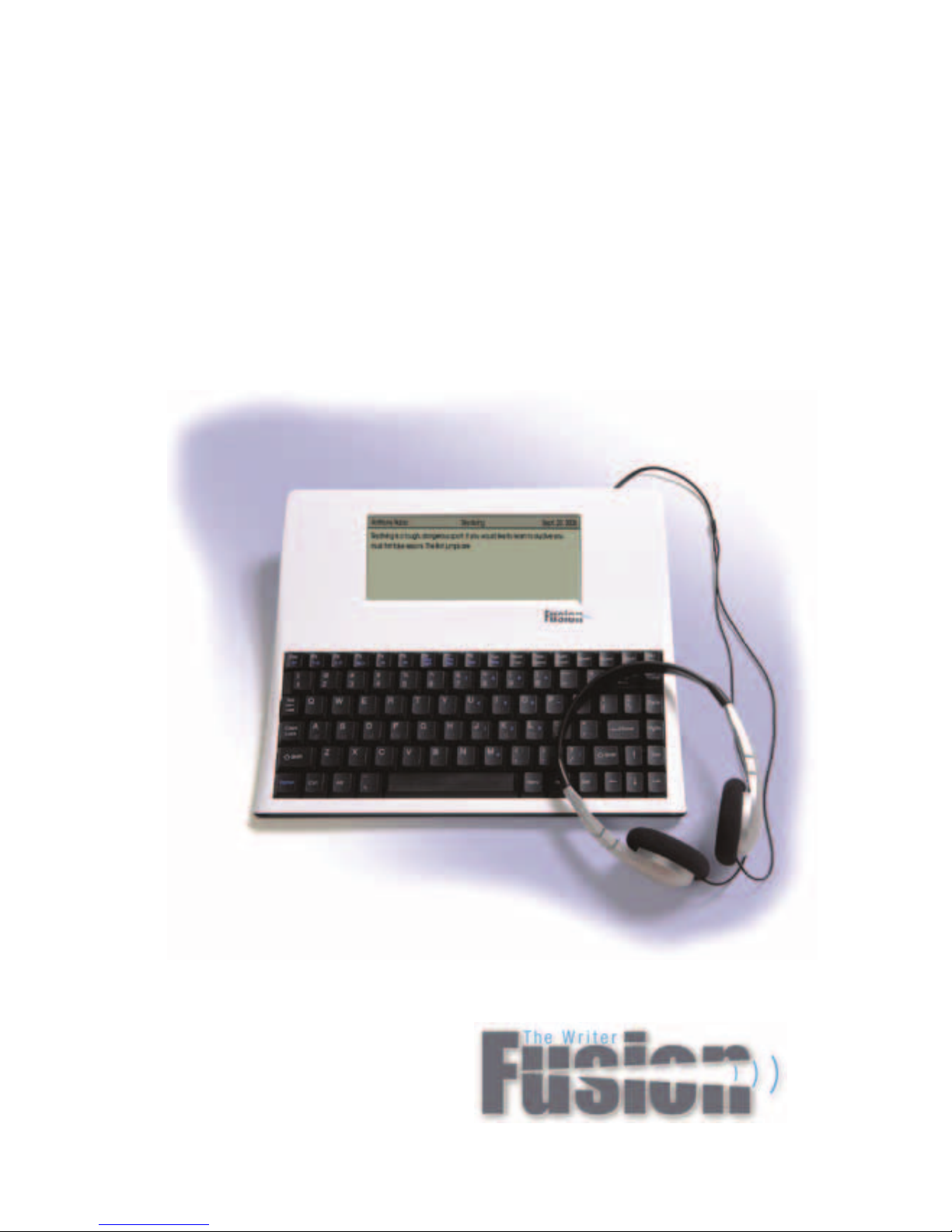
Operation
Guide


i
Introduction
Thank you for your purchase of this
Fusion keyboard.
Designing, manufacturing and supporting the Fusion
keyboard is a responsibility we take very seriously. We have
made every effort to design a thoughtful, sturdy and easy-to-
use learning tool.
It is important for you to know that we stand behind our
products and encourage you to call with any problem or
suggestion you might have. A representative would be happy to
speak with you.
The friendly people at AKT, Inc.
Advanced Keyboard Technologies, Inc.
PO Box 186, Paso Robles, CA 93447
Phone Toll Free - (800) 797-7121
Fax (805) 239-8973
E-mail [email protected]
Web site www.writerlearning.com
©2010, AKT

ii
Fusion Connections
IR Receiver
Simply plug the Fusion infrared receiver into any
Mac or PC USB port, then open a word processing
document so that a blank page appears on your
computer. On the Fusion, open the document you
would like totransfer tothe computer. Allign the
back of the Fusion with the IR Receiver and press
the Send key on your Fusion.
Fusion Connections
• Back up les
• Transfer les to and from a computer
• Upload new programs
USB Flash Drive
Take your writing home, to the library, or lab to complete
Flash drive not
included
USB Flash Drive
AC Adaptor
Recharger
Recharge Cradle
Audio
headphones,
earbuds, speaker
USB
out to
computer
USB
out to printer
and to USB
flash drive
Infrared
send to
IR receiver
Reset
Contrast
Adjustment

iii
Contents
Fusion Start Up ................................................................... 1
Rechargable Battery / Automatic Shutoff .......................... 2
Desktop ............................................................................... 3
Writing ................................................................................. 4
Spell Check / Thesaurus ..................................................... 5
Score .................................................................................... 6
Editor Keys .......................................................................... 7
Split Screen Vocabulary Program ...................................... 8
Sending Files ..................................................................... 10
Good Writing Checklists .................................................. 11
Text to Speech ................................................................... 13
Abbreviation Expansion ................................................... 14
WordStorm™ Word Prediction ....................................... 16
Hotsheet .............................................................. Centerfold
Perfect Form™ Keyboard Instruction ............................. 19
Keyboard Lessons ............................................................. 22
Options ............................................................................. 25
Memory Expansion/USB ................................................. 26
Math 101 ........................................................................... 27
Calendar ............................................................................ 31
Passwords ........................................................................... 32
Troubleshooting................................................................ 33
Warranty ........................................................................... 34
Contact .............................................................................. 35


1
Fusion Start Up
Start Up
After the battery has been fully charged (see page 2), simply
press the ON key. Fusion will prompt you to create a personal
desktop (unless one has already been created).
• To create additional personal desktops, simply press N in
the opening screen.
• To set the date, press Menu/Setup/Set Clock.
Enter will move you forward.
Esc will take you back to a previous screen.
Menu will show all available options.
(note: dierent Fusion screens
will oer dierent options.)
Start Up
Fusion supports single or multiple users. Each user can be password protected.
Create
New User
Press
On
Enter
Moves you
forward
Menu - shows options
Esc
takes you back

2
Fusion
Rechargable Battery
Your Fusion has a factory-installed rechargeable battery. Be certain
that your Fusion unit is fully charged (24 hrs.) prior to use.
To charge: Plug AC adapter into Fusion and check to see
that red light on left side comes on indicating “charging.” A
blinking red light indicates a full charge. To check battery
status, press the “Battery” key (F2).
Automatic Shuto
To preserve battery life, the Fusion has two auto-off presets.
Preset number one begins when the On key is pressed. The
Fusion will automatically turn off in 60 seconds if no other key
is depressed. Preset number two begins as soon as a student
logs in and begins working on the Fusion. Preset number
two is set for 4 minutes. The auto-off presets can be adjusted.
Follow these steps: Turn the Fusion on and immediately
hold down Ctrl-Alt and tap “P”. Enter the Fusion password
corresponding to the number shown. A blank screen will
appear. Press the Menu key then select “Setup Keyboard” and
press Enter. The first two items shown “Idle Shutdown” and
“Active Shutdown” are the two auto-off settings. Use arrow
keys to adjust.

3
Fusion Desktop
Students create personal desktop-style environments. Here
Files, Folders and Programs will be listed. Files will be listed
in the left column, Folders in the center, and Programs on the
right. Press the Menu key to see options. When turned on, the
Fusion will open to the last screen viewed.
• To password protect student data, press Menu/Setup/
Password.
• To create additional student desktops, press Esc to return to
the opening screen, and press N.
Desktop
Organized and secure.
Files
auto-saved
and listed here
On-board
Programs
listed here
Folders
for Subjects/Special Projects
Press N to create a new le
Press F to create a folder
Press Menu to see options

4
Fusion Writing
From the “Desktop” press “N” to begin a new file. You will be
prompted to name your new file. Type in the file name and press
Enter. A blank screen will appear – ready to receive your text. By
pressing Esc, you will exit your file. You will see the name of your
file on the desktop. All text is automatically saved.
Use arrow keys to highlight any file you wish to open. Press
Enter to open and edit the file. Use the arrow keys to move the
cursor up, down, left or right within your file.
While in your file, you can access many programs and features.
All features listed in blue on the top row of keys are active.
Additionally, while in your file you can press the Menu key to
access; cut, copy and paste, speech options, word prediction
options, sending options, and special needs options. Pressing Esc
will close the Menu.
To delete a file, highlight the name of the file on the desktop and
press the Del key. Once deleted, your file can not be retrieved.
Writing
Assistive and instructive.
Features
• Font size
• Thesaurus
• Spell check
• Dictionary
• Cut, Copy, Paste
• Auto save
• Score
• Spell check
disable
Easy One-Key Access
Menu - shows options
Table des matières


