AJAX WallSwitch Manuel utilisateur

WallSwitch User manual
Updated January 11, 2023
WallSwitch is a power relay to control 110/230 V~ power supply remotely. The
relay power supply is not galvanically isolated with terminal blocks; therefore,
WallSwitch switches only the power received at the power supply terminal blocks.
The device has an energy consumption meter and features three types of
protection: voltage, current, and temperature.
Only a qualied electrician or installer should install WallSwitch.
WallSwitch controls the power supply of electrical appliances connected to the
circuit with a load of up to 3 kW using , , the
function button on the relay, and by pressing .
Ajax apps automation scenarios
Button

WallSwitch is connected to the Ajax security system via the secure Jeweller radio
protocol. The communication range is up to 1,000 meters in an open space. The
device works only with Ajax and .
Functional elements
IN terminals:
radio signal range extenders hubs
Buy WallSwitch
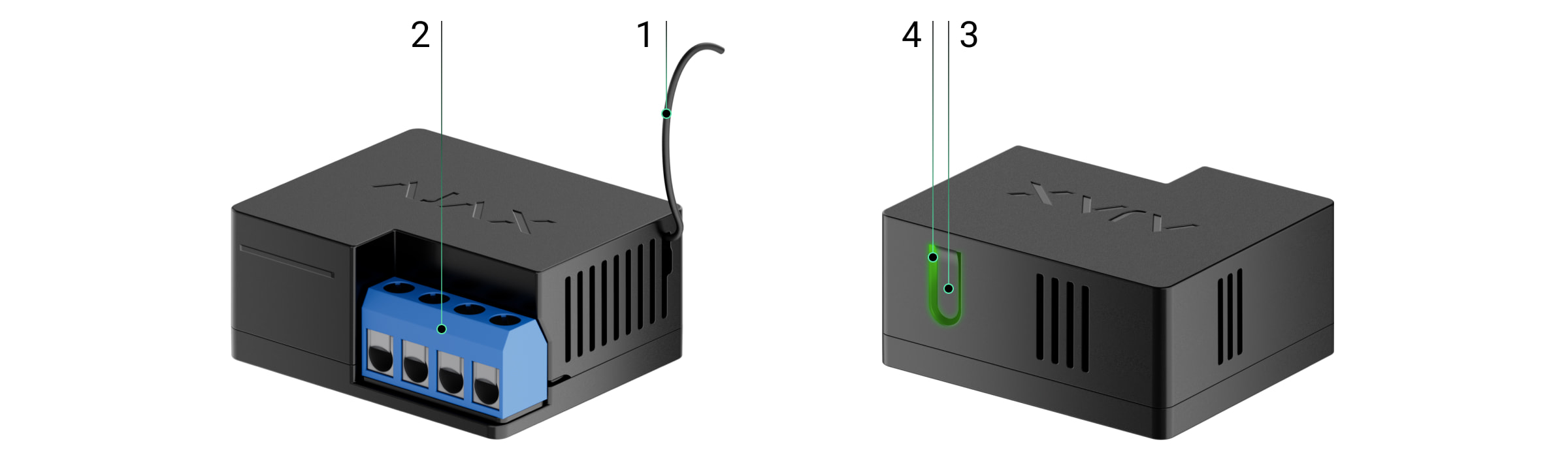
1. Antenna.
2. Terminal blocks.
3. Function button.
4. LED indicator.
L terminal — power supply phase connection terminal.

OUT terminals:
Operating principle
WallSwitch is a power relay of the Ajax security system. The relay is installed in the
electrical circuit gap to control the power supply of devices connected to this
circuit. The relay can be controlled via the function button on the device (by holding
it down for 2 seconds), the , , and .
WallSwitch switches one single pole of the electrical circuit — the phase. In this
case, the neutral is not commuted and remains closed.
WallSwitch can operate in bistable or pulse mode (pulse mode is available with
). The pulse duration can be set in pulse mode
from 1 to 255 seconds. The operating mode is selected by users or PRO with
admin rights in Ajax apps.
N terminal — power supply neutral connection terminal.
N terminal— power supply neutral output terminal.
L terminal— power supply phase output terminal.
Ajax app Button automation scenarios
rmware version 5.54.1.0 and higher
00:00
00:04

The user or PRO with administrator rights can also set the normal state of the relay
contacts (the function is available for WallSwitch with
):
WallSwitch measures the current, voltage, the amount of energy consumed by
electrical appliances, and the power they consume. This data, along with other
operating parameters of the relay, is available in the device . Relay states
update frequency depends on Jeweller or Jeweller/Fibra settings; the default value
is 36 seconds.
The maximum resistive load of the relay is 3 kW. If an inductive or capacitive load is
connected, the maximum switching current drops to 8 A.
Automation scenarios
Ajax’s scenarios offer a new level of protection. With them, the security system not
only noties about a threat, but also actively resists it.
rmware version 5.54.1.0
and higher
Normally closed— the relay stops supplying power when activated and
resumes when deactivated.
Normally open — the relay supplies power when activated and stops when
deactivated.
States
00:00
00:07

Scenario types with WallSwitch and examples of usage:
Control via the app
In , a user can switch on and off electrical appliances connected to an
electrical circuit controlled by WallSwitch.
Click the toggle in the WallSwitch eld in the Devices menu: the state of the
relay contacts will change to the opposite, and the connected electrical device will
switch off or on. This way, a security system user can remotely control the power
supply, for example, for a heater or a humidier.
By alarm. Lighting is switched on when an opening detector raises an alarm.
By security mode change. The electric lock is automatically blocked when the
object is armed.
By schedule. The irrigation system in the yard is switched on according to the
schedule for the specied time. Lighting and TV are switched on when the
owners are away so that the house doesn’t seem empty.
By pressing Button. Switching on night lighting by pressing the smart button.
More about scenarios
Ajax apps

When WallSwitch is in pulse mode, the toggle will change from on/off to pulse.
Protection types
WallSwitch has three types of protection that operate independently: voltage,
current, and temperature.
Voltage protection: is activated if the supply voltage exceeds the range of 184–253
V~. Protects connected devices from voltage surges. We recommend disabling
this protection if WallSwitch is connected to 110 V~ grids.
Current protection: is activated if the resistive load exceeds 13 A and inductive or
capacitive load exceeds 8 A. Protects relays and connected devices from
overcurrent.
Temperature protection: is activated if the relay heats up to temperatures above
65°C. Protects the relay from overheating.
When voltage or temperature protection is activated, the power supply through
WallSwitch is stopped. Power supply resumes automatically when voltage or
temperature returns to normal.
When the current protection is activated, the power supply will not be restored
automatically; the user needs to use the Ajax app for this.
Energy consumption monitoring
In the Ajax app, the following energy consumption parameters are available for
appliances connected via WallSwitch:
Voltage.
Load current.
Power consumption.

Update frequency of parameters depends on Jeweller or Jeweller/Fibra polling
period (default value is 36 seconds). Power consumption values are not reset in
the app. To reset the readings, temporarily power off WallSwitch.
Jeweller data transfer protocol
WallSwitch uses the Jeweller radio protocol to transmit alarms and events. This
wireless protocol provides fast and reliable two-way communication between the
hub and connected devices.
Jeweller supports block encryption with a oating key and authentication of
devices at each communication session to prevent sabotage and device spoong.
The protocol involves regular polling Ajax devices by the hub at intervals of 12 to
300 seconds (set in the Ajax app) to monitor communication with all devices and
display their statuses in the app.
Sending events to the monitoring station
The Ajax security system can transmit alarms and events to the
monitoring app as well as the central monitoring station (CMS) via SurGard
(Contact ID), SIA DC-09 (ADM-CID), ADEMCO 685, and other proprietary protocols.
With PRO Desktop, the CMS operator receives all Relay events. With other CMS
software, a monitoring station receives only notication about connection loss
between WallSwitch and the hub (or range extender).
The addressability of Ajax devices allows sending not only events but also the type
of the device, its name, and room to PRO Desktop/CMS (the list of transmitted
Power consumed.
Learn more about Jeweller
More about Ajax encryption algorithms
PRO Desktop
Which CMSs can Ajax hubs be connected to

parameters may vary depending on the type of the CMS and the selected
communication protocol).
The relay ID and zone number can be found in the WallSwitch in the Ajax app.
Selecting the installation spot
The device is connected to the 110/230 V~ grid. The WallSwitch dimensions (39 ×
33 × 18 mm) allow installing the device into the deep junction box, inside the
electrical appliance enclosure, or in the distribution board. A exible external
antenna ensures stable communication. To install WallSwitch on a DIN rail, we
recommend using a .
WallSwitch should be installed with a stable Jeweller signal strength of 2–3 bars.
To roughly calculate the signal strength at the place of installation, use a
. Use a if the signal
strength is less than 2 bars at the intended installation location.
Do not install WallSwitch:
States
DIN Holder
radio
communication range calculator radio signal range extender
1. Outdoors. Doing so may cause the device to malfunction or not work correctly.
2. In rooms where the humidity and temperature do not correspond to the
operating parameters. Doing so may cause the device to malfunction or not

Installing
Only a qualied electrician or installer should install WallSwitch.
Before installing the relay, ensure that you have selected the optimal location and
that it complies with the requirements of this manual. When installing and
operating the device, follow the general electrical safety rules for using electrical
appliances and the requirements of electrical safety regulations.
When installing WallSwitch in the junction box, lead out the antenna and place it
under the plastic frame of the socket. The bigger the distance between the antenna
and metal structures, the lower the risk of interfering with and deteriorating the
radio signal.
work correctly.
3. Near sources of radio interference: for example, at a distance of less than 1
meter from a router. This can lead to a loss of connection between WallSwitch
and the hub (or range extender).
4. In places with low or unstable signal strength. This can lead to a loss of
connection between the relay and the hub (or range extender).
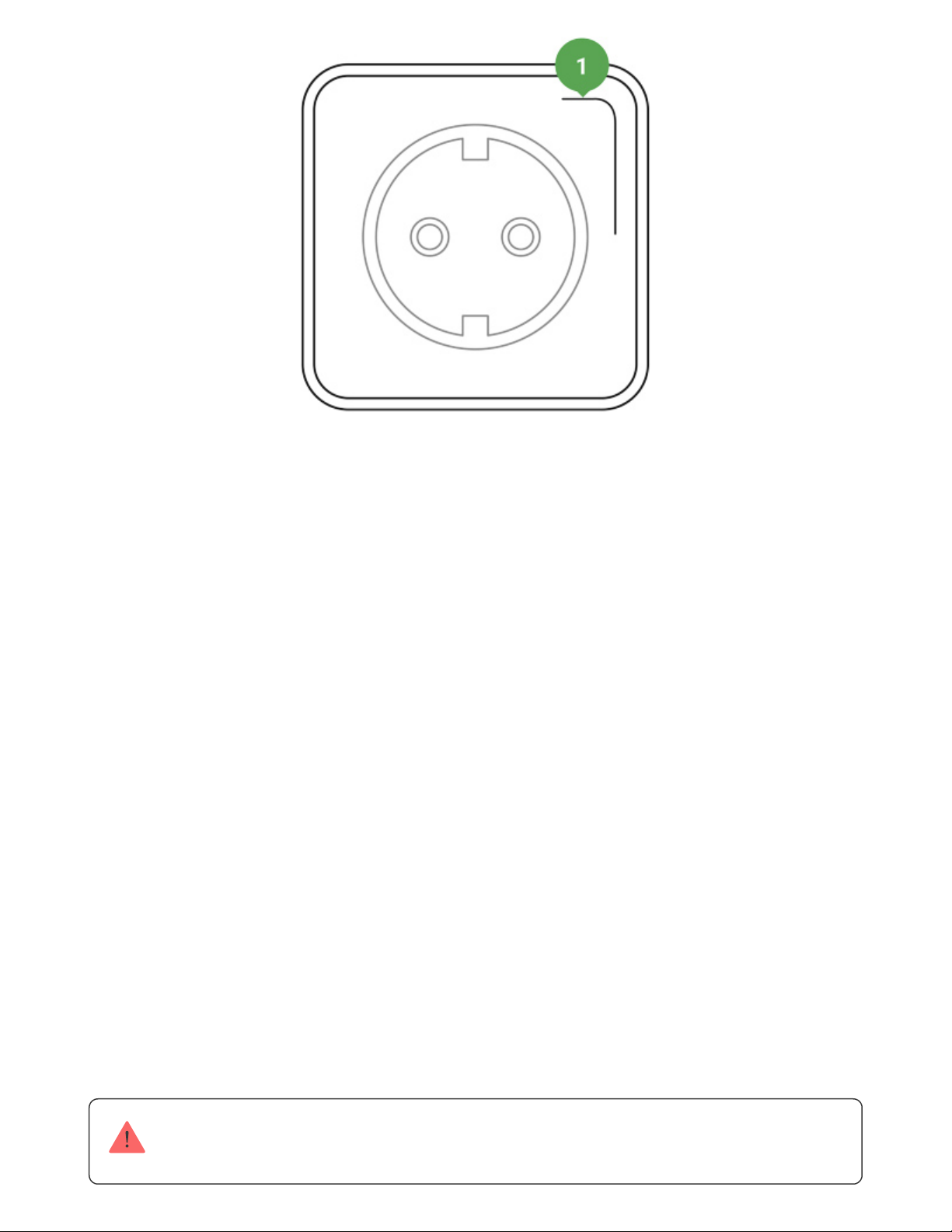
Recommended antenna position
When connecting, it is recommended to use cables with a cross-section of 1.5 — 2
mm². WallSwitch should not be connected to circuits with a load of more than 3
kW.
To install WallSwitch:
Do not shorten or cut the antenna. Its length is optimal for operation in the Jeweller radio
frequency range.
1. If you install WallSwitch on a DIN rail, x DIN Holder to it rst.
2. De-energize the power cable to which WallSwitch will be connected.
3. Connect the phase and neutral to the power terminals of WallSwitch. Then
connect the wires to the output terminals of the relay.
4. Place the relay in DIN Holder. If the relay is not mounted on the DIN rail, we
recommend securing WallSwitch with double-sided tape if it’s possible.
5. Secure the wires if necessary.
Autres manuels pour WallSwitch
5
Table des matières
Autres manuels AJAX Relais