AJAX KeyPad TouchScreen Manuel utilisateur

KeyPad TouchScreen Benutzerhandbuch
Aktualisiert am 7. August 2023
KeyPad TouchScreen ist eine drahtlose Tastatur mit Touchscreen für die
Verwaltung des Ajax-Sicherheitssystems. Benutzer können sich mit
Smartphones authentizieren, Schlüsselanhänger, Karten und
Codes. Das Gerät ist für den Einsatz in Innenräumen konzipiert.
Das KeyPad TouchScreen kommuniziert mit einer Hub-Zentrale über zwei
sichere Funkprotokolle. Die Tastatur verwendet Jeweller, um Alarme und
Ereignisse zu übertragen, und Wings, um eine Firmware zu aktualisieren, die
Liste der Gruppen, Räume und andere zusätzliche Informationen zu übertragen.
Die Kommunikationsreichweite ohne Hindernisse beträgt bis zu 1.700 Meter.
Funktionelle Elemente
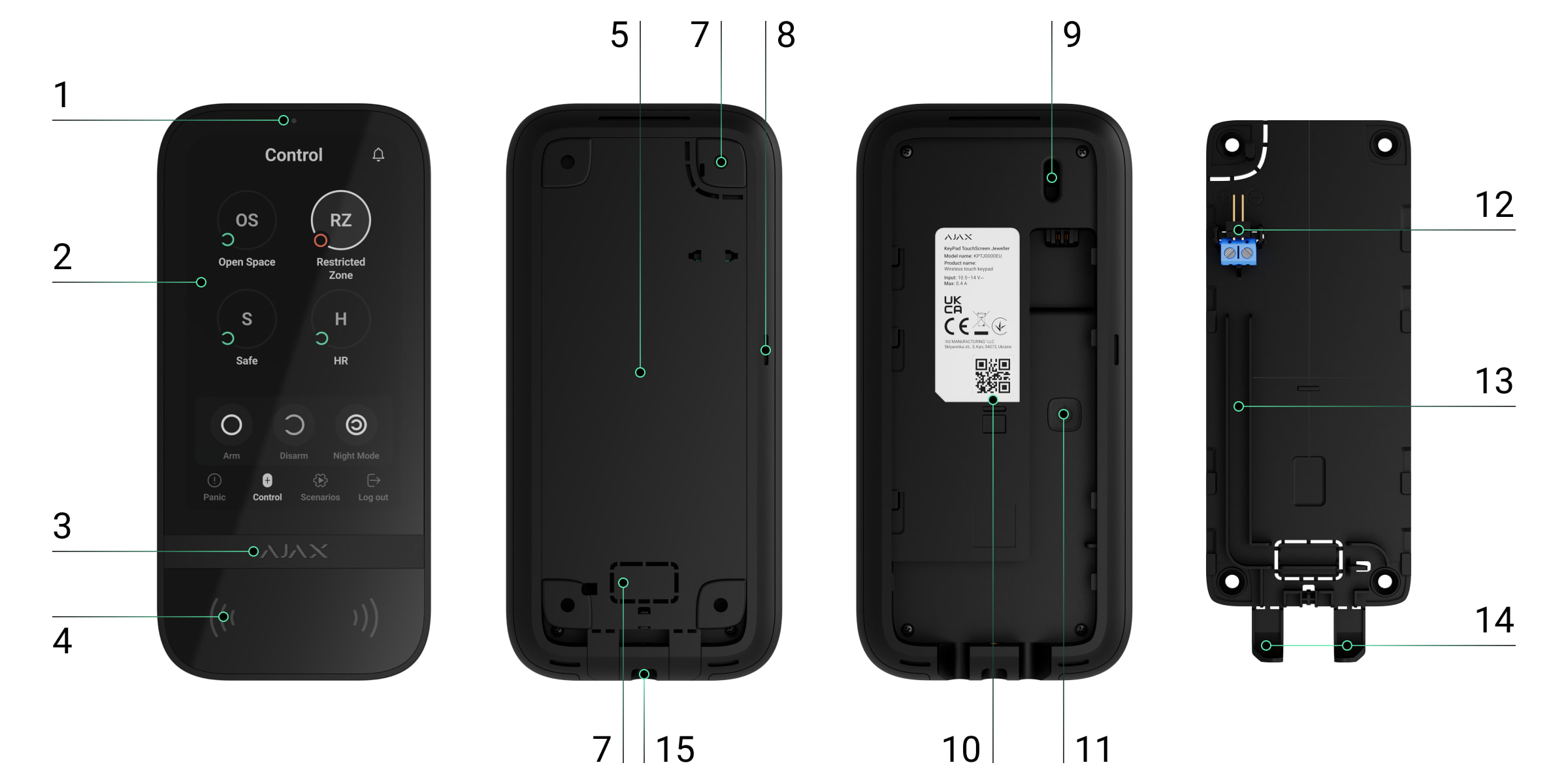
Etikett Bestehen
Weitere Informationen

1. Umgebungslichtsensor. Es dient zur automatischen Anpassung der
Helligkeit der Hintergrundbeleuchtung.
2. IPS-Touchscreen-Display mit einer Diagonale von 5 Zoll.
3. Ajax-Logo mit LED-Anzeige.
4. Karten/Schlüsselanhänger/Bluetooth-Leser.
5. SmartBracket-Montageplatte. Um die Blende zu entfernen, schieben Sie sie
nach unten.
6. Perforierter Teil der Montageplatte. Notwendig, um einen
Manipulationsschutz auszulösen, falls versucht wird, die Tastatur von der
Oberäche zu lösen. Brechen Sie es nicht ab.
7. Perforierter Teil der Montageplatte zur Ausgabe von Kabeln durch die Wand.
8. Eingebauter Summer.
9. .Manipulationstaste
10. QR-Code mit der Geräte-ID. Es wird verwendet, um die Tastatur zum Ajax-
System hinzuzufügen.
11. Ein-/Aus-Taste.
12. Klemmen zum Anschluss eines fremden Netzteils. Sie können bei Bedarf
aus den Halterungen entfernt werden.
13. Cable channel for routing the cable from the third-party power supply unit.

Compatible hubs and range extenders
A compatible Ajax hub with the rmware and higher is
required for the keypad to operate.
Hubs Radio signal range extenders
Operating principle
KeyPad TouchScreen has a built-in buzzer, a touchscreen display, and a reader
for contactless authorization. The keypad can be used to control security
modes, automation devices and to notify about system alarms.
The keypad can automatically adjust the backlight brightness and wakes up
when approaching it. Sensitivity is in the app. KeyPad TouchScreen
interface inherits the Ajax Security System app. It is available to choose dark or
light interface appearance. A touchscreen display with a 5-inch diagonal allows
you to access the security mode of an object or any group and to control
automation scenarios. The display also informs about system malfunctions, if
present (when is enabled).
14. Perforated part of the mounting panel to output cables from the bottom.
15. The hole for attaching the SmartBracket mounting panel with a holding
screw.
OS Malevich 2.16.1
Hub 2 (2G)
Hub 2 (4G)
Hub 2 Plus
Hub Hybrid (2G)
Hub Hybrid (4G)
ReX 2
adjustable
system integrity check

Depending on the settings, the KeyPad TouchScreen built-in buzzer noties
about:
Keypad runs on pre-installed batteries. It can also be powered by a third-party
power supply unit with voltage range 10.5–14 V⎓ and operating current from 0.5
A. When external power is connected, the pre-installed batteries are used as a
backup power source.
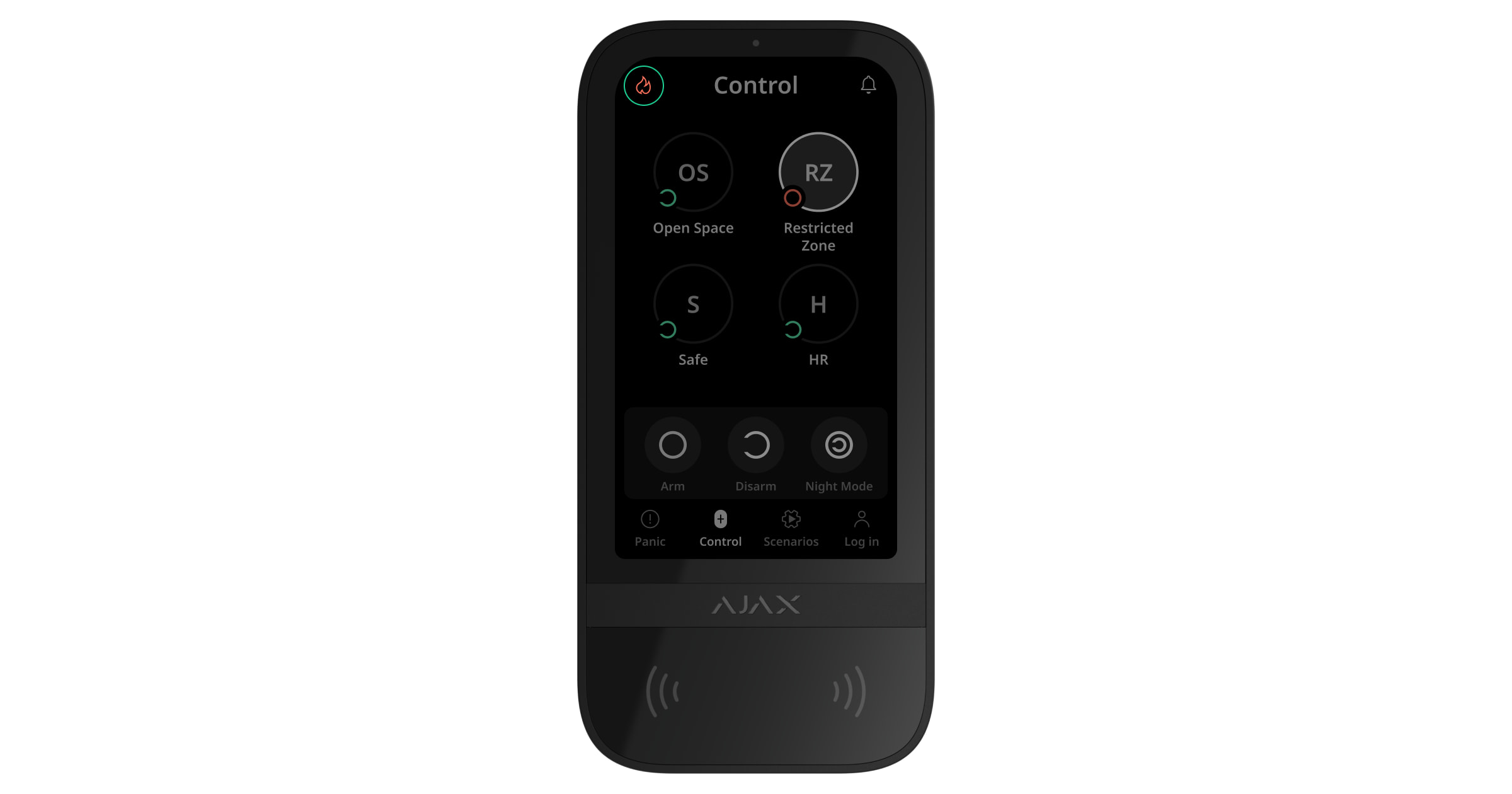
Security control
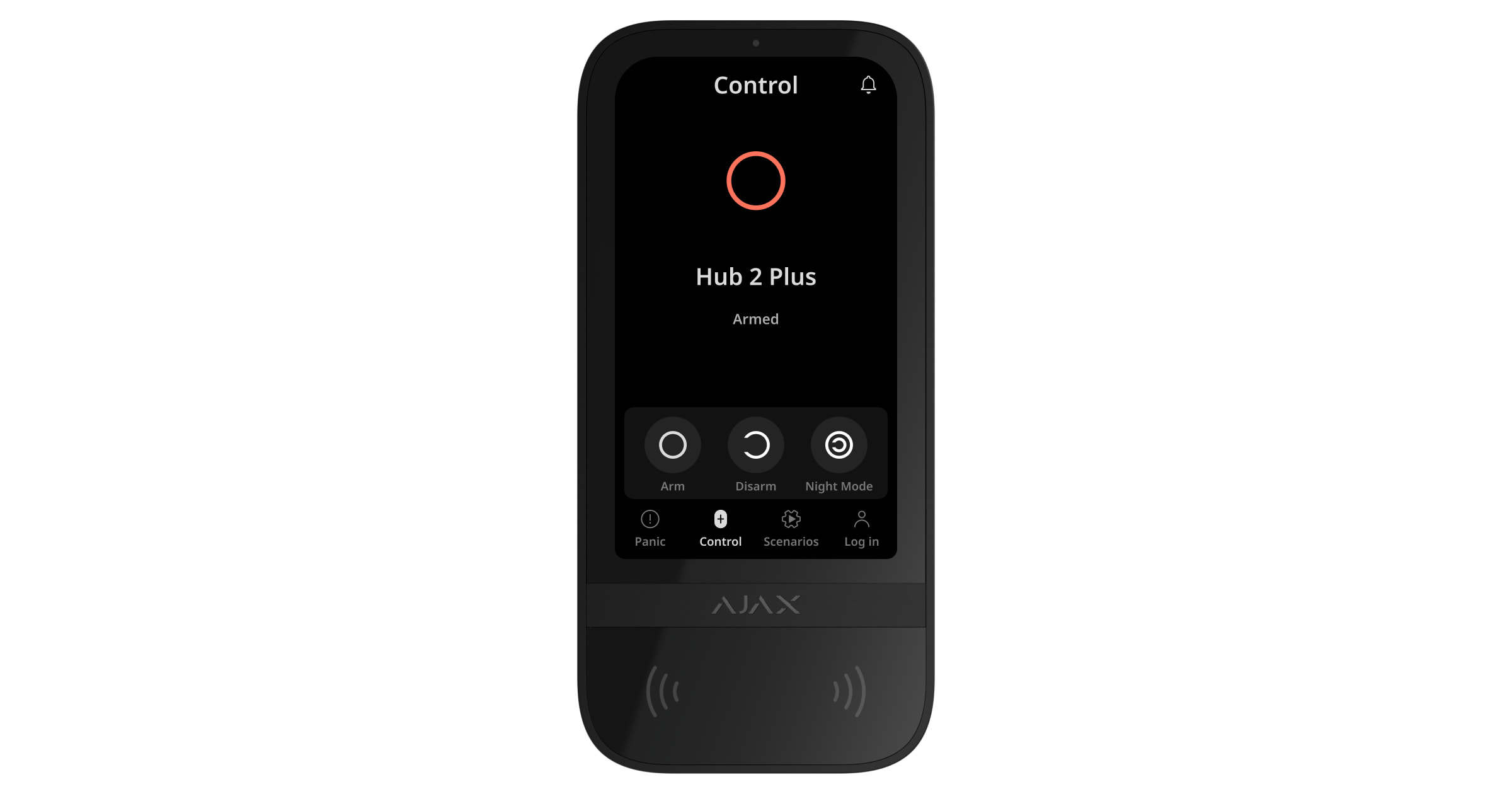
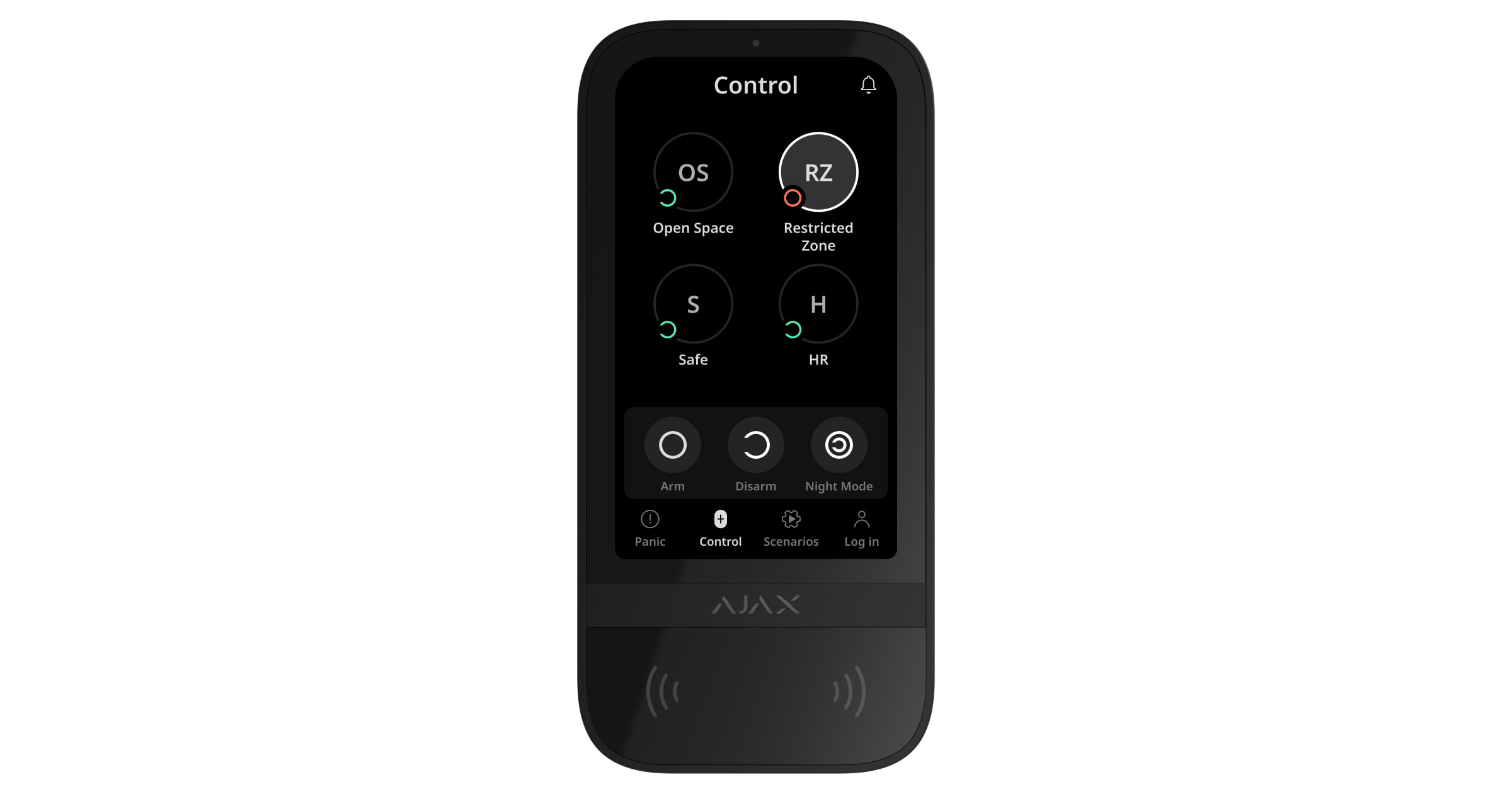
KeyPad TouchScreen can arm and disarm the entire object or separate groups,
and activate Night mode. Use the Control tab to change the security mode. You
can control the security with KeyPad TouchScreen using:
alarms;
security mode change;
entry/exit delays;
triggering of the opening detectors.
1. Smartphones. With the installed app and Bluetooth
Low Energy (BLE) support. Smartphones can be used instead of Tag or Pass
Ajax Security System
Access codes
The number of personal codes and keypad access codes depends on the .
Access rights and codes can be adjusted in Ajax apps. If the code is
compromised, it can be changed remotely, eliminating the need to call an
installer to the object. If a user loses Pass, Tag, or smartphone, an admin or a
PRO with the rights to congure the system can instantly block the device in the
app. Meanwhile, a user can use a personal code to control the system.
Security control of the groups
to authorize a user. BLE is a radio protocol with low power consumption.
The keypad supports Android and iOS smartphones with BLE 4.2 and higher.
2. Cards or key fobs. To quickly and securely identify users, KeyPad
TouchScreen uses the DESFire® technology. DESFire® is based on the ISO
14443 international standard and combines 128-bit encryption and copy
protection.
3. Codes. KeyPad TouchScreen supports general, personal codes and codes
for unregistered users.
Keypad code — general code set up for the keypad. When used, all events
are delivered to Ajax apps on behalf of the keypad.
User code — personal code set up for users connected to the hub. When
used, all events are delivered to Ajax apps on behalf of the user.
Keypad access code — a code set up for a person who is not registered in
the system. When used, events are delivered to Ajax apps with a name
associated with this code.
hub model

KeyPad TouchScreen allows to control the groups’ security (if
). You can also adjust in the keypad which groups will be
shared (keypad groups). By default, all groups are available for viewing on the
keypad display in the Control tab. You can learn more about group security
management in .
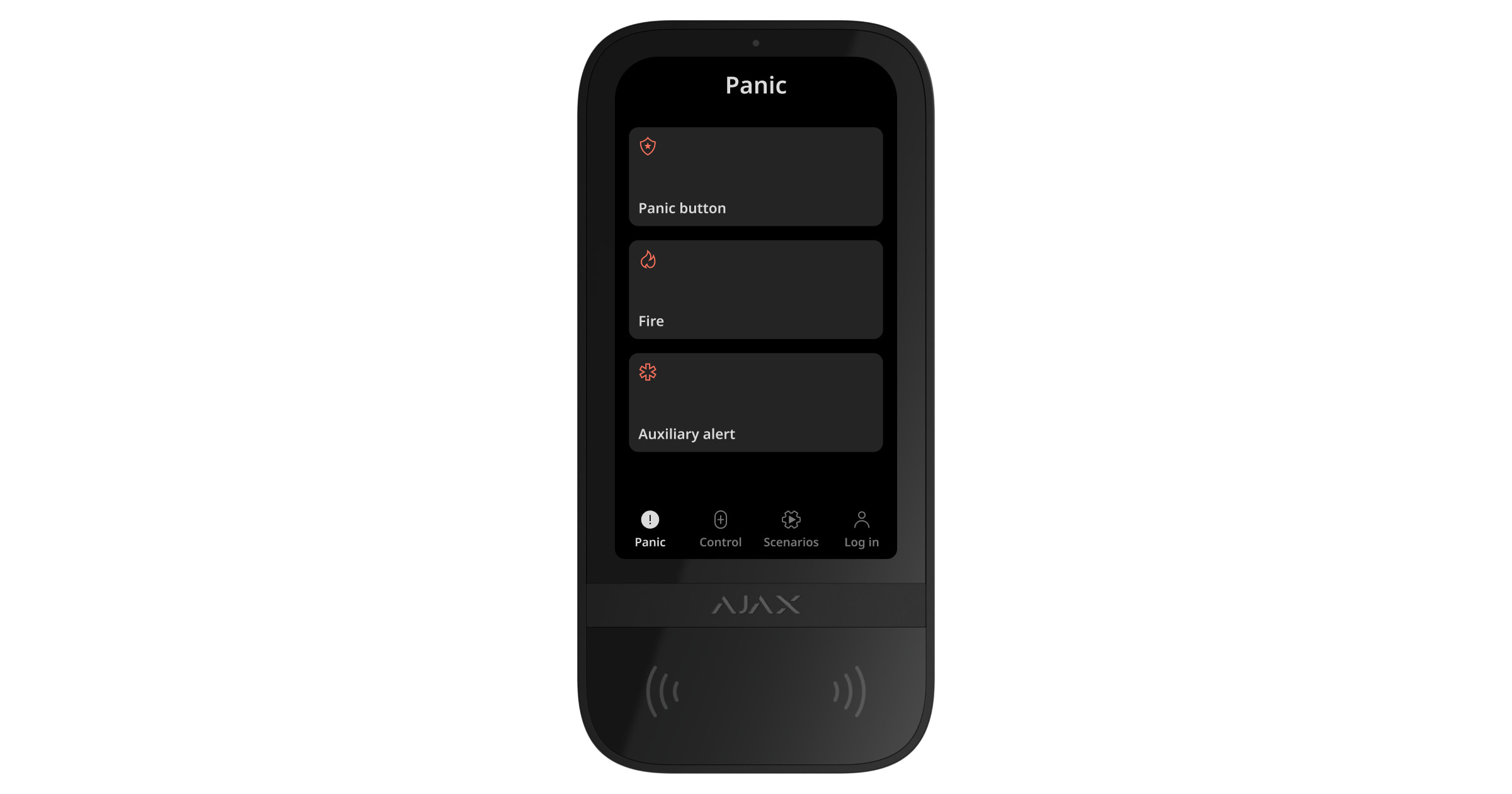
Emergency buttons
For emergencies, the keypad has the Panic tab with three buttons:
Group mode is
enabled settings
this section
In Ajax app an admin or a PRO with the rights to congure the system can select
the number of buttons to display in the Panic tab. There are two options
available in the KeyPad TouchScreen : only Panic button (by default)
or all 3 buttons. Notications text in apps and event codes transmitted to the
Central Monitoring Station (CMS) depend on the selected button type.
You can also activate accidental press protection. In this case, the user conrms
alarm transmission by pressing the Send button on the keypad display. The
conrmation screen appears after pressing any panic button.
Pressing emergency buttons can trigger in Ajax system.
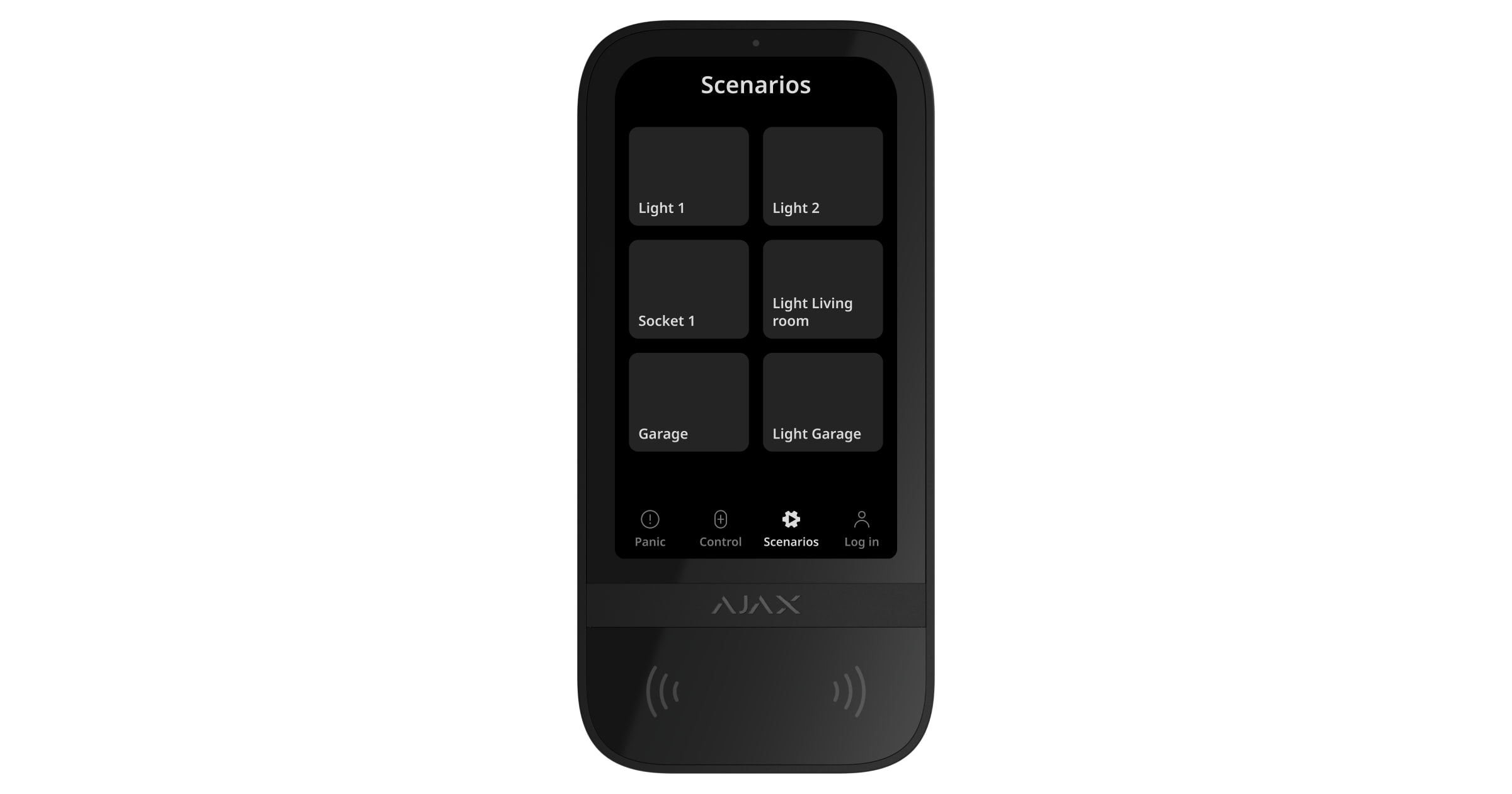
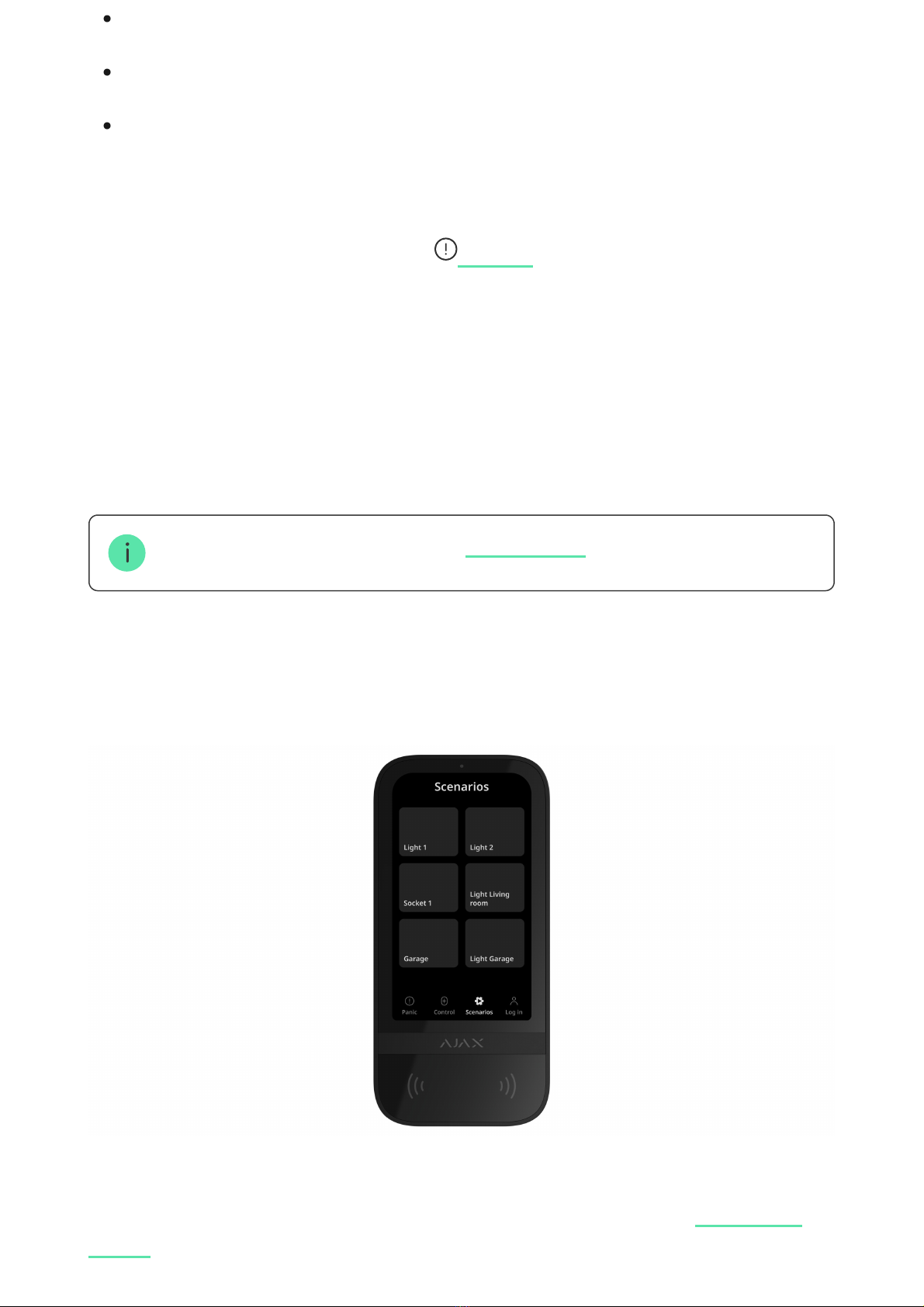
Scenarios management
The separate keypad tab holds up to 6 buttons which control one
or a group of devices. Group scenarios provide more convenient control
of several switches, relays, or sockets simultaneously.
Panic button.
Fire.
Auxiliary alert.
settings
Alarm scenarios
automation
device

Create automation scenarios in the and control them with
KeyPad TouchScreen.
Indication of malfunctions and security mode
KeyPad TouchScreen informs users about system malfunctions and security
mode with:
Depending on the settings, the logo lights up red continuously or when the
system or group is armed. KeyPad TouchScreen indication is shown on the
display only when it is active. Built-in buzzer noties about alarms, door
openings and entry/exit delays.
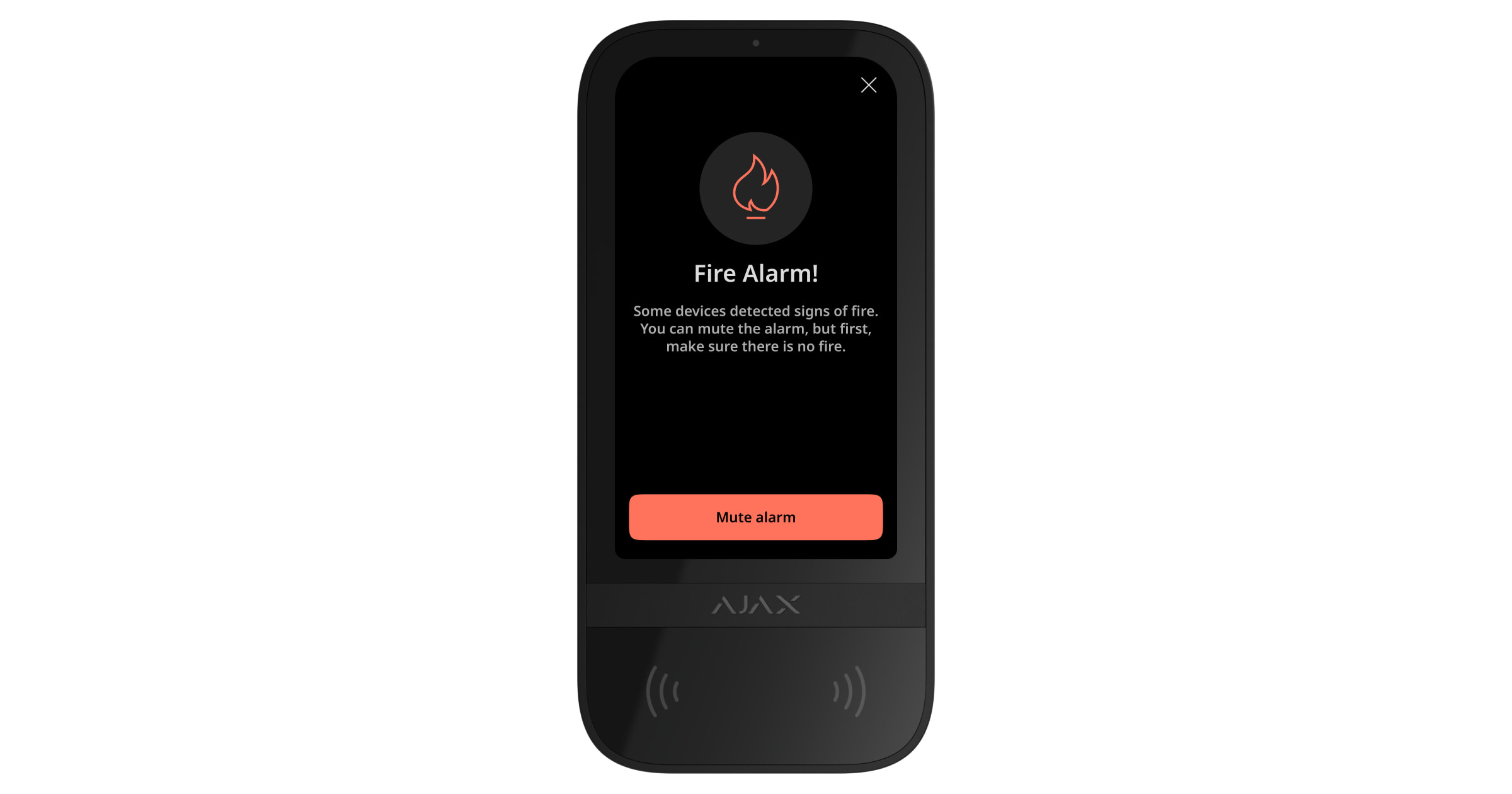
Fire alarm muting
In case of a re alarm in the system, you can mute it with KeyPad TouchScreen.
keypad settings
Learn more
display;
logo;
sound indication.

Pressing an emergency button Fire in the tab doesn’t activate
(if enabled). When sending an emergency signal from the keypad, an
appropriate notication will be transmitted to the app and the CMS.
The screen with information about the re alarm and the button to mute it will
appear on all KeyPad TouchScreen with the Mute Fire Alarm feature enabled. If
the mute button has already been pressed on the other keypad, an appropriate
notication appears on the rest KeyPad TouchScreen displays. Users can close
the re alarm muting screen and use other keypad features. To re-open the
muting screen, press the icon on the KeyPad TouchScreen display.
To instantly display the re alarm muting screen on the KeyPad TouchScreen, enable the
Always Active Display toggle in the KeyPad settings. Also, connect the third-party power
supply.
Otherwise, the muting screen will be displayed only when the keypad wakes up.
Duress code
KeyPad TouchScreen supports duress code. It allows you to simulate alarm
deactivation. In this case, the and the installed at the facility will
not give away your actions. Still, the security company and other security
system users will be alerted about the incident.
Panic Interconnected Fire
Detectors Alarm
Ajax app sirens

User pre-authorization
Pre-authorization feature is necessary to block access to the control panel and
current system state from unauthorized persons. The feature activates
separately for the Control and Scenarios tabs in the keypad .
The screen for entering the code is displayed on the tabs for which pre-
authorization is activated. The user should authenticate rst: enter a code or
bring a personal access device to the keypad. The exception is the Alarm tab,
which allows unauthorized users to send an emergency signal.
Unauthorized Access Auto-Lock
If a wrong code is entered or non-veried access device is used three times in a
row within 1 minute, the keypad will be locked for the time specied in its
. During this time, the hub will ignore all codes and access devices while
informing the security system users about attempted unauthorized access.
KeyPad TouchScreen will turn off the reader and block access to all tabs. The
keypad display will show an appropriate notication.
PRO or a user with the rights to congure the system can unlock the keypad
through the app before the specied locking time expires.
Two-Stage Arming
KeyPad TouchScreen can participate in two-stage arming, but cannot be used as
a second-stage device. The two-stage arming process using Tag, Pass or
smartphone is similar to using a personal or general code on the keypad.
Jeweller and Wings data transfer protocols
Jeweller and Wings are two-way wireless data transfer protocols that provide
fast and reliable communication between hub and devices. The keypad uses a
Learn more
settings
settings
Learn more
Autres manuels pour KeyPad TouchScreen
1
Table des matières
Autres manuels AJAX Contrôleurs