AirTies Air 4920 Manuel utilisateur

Home Wi-Fi Mesh Access Point
Air 4920 Expansion Unit
Quick Installation Guide

2
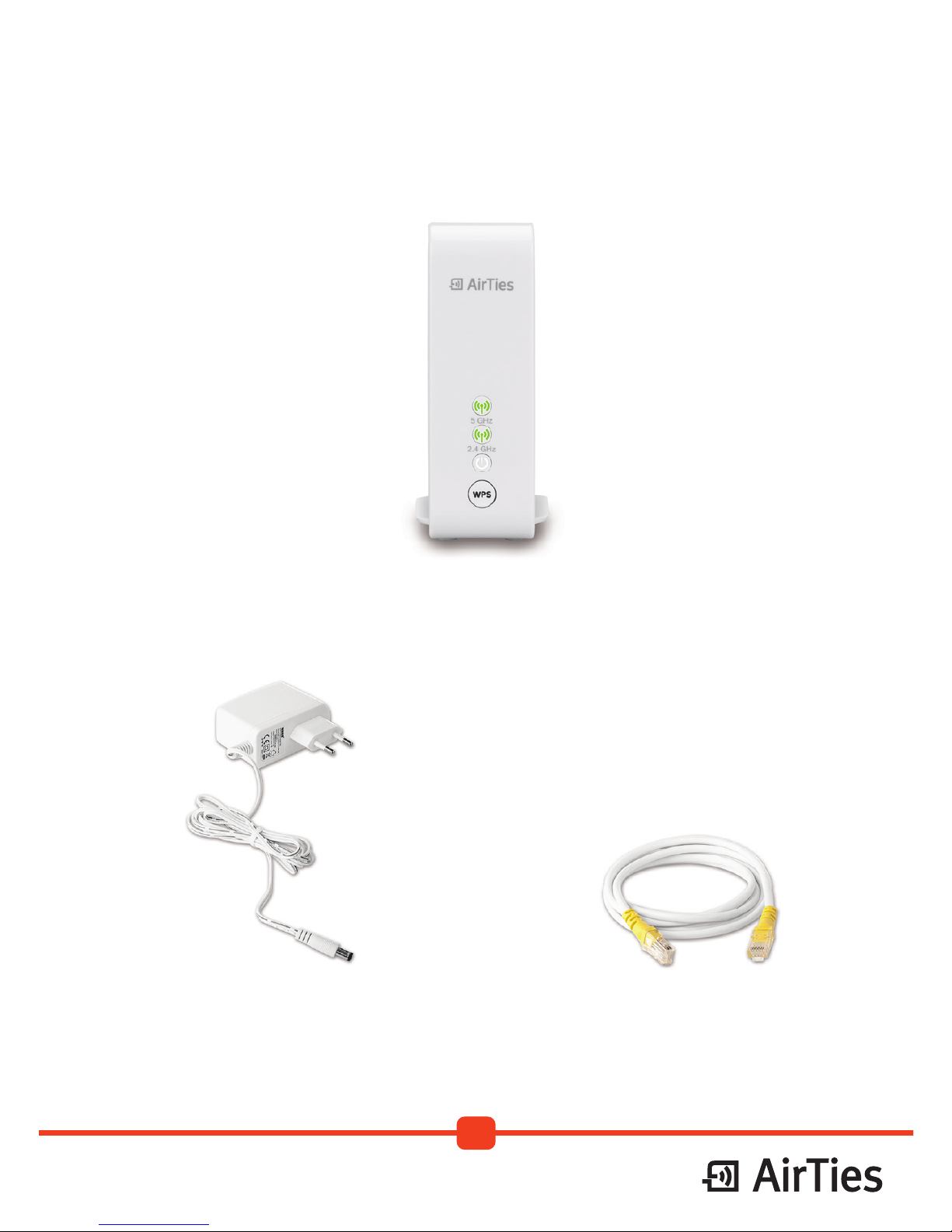
PACKAGE CONTENT
Power Adapter
AirTies Air 4920 Expansion Unit
Ethernet Cable
*Cable colour may vary.

3
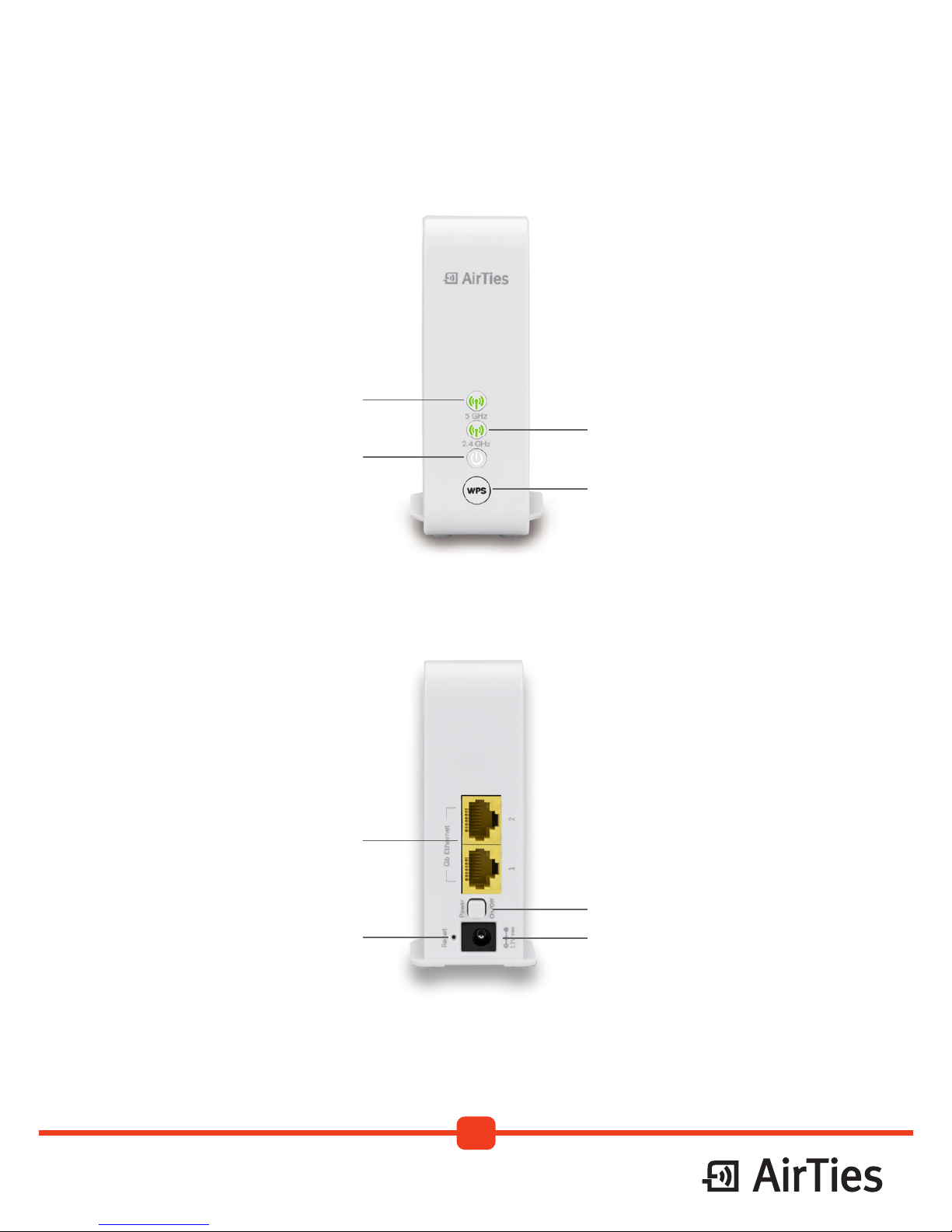
PORTS AND BUTTONS
Wireless 5GHz Status LED
Wireless 2.4GHz Status LED
Power On/Off Status LED
WPS Button
Gigabit Ethernet Ports
Reset Button
Power On/Off Button
External Power Adapter

4
LED
Indicators Conditions LED
Colour
LED
Behaviour Timing
State
Identier Explanation Recommended Action(s)
Power OFF OFF/Dark
APower the device on if desired.
No other action required.
Power ON White Solid (No blinking)
B
No action required. If unit was just powered
on, then please wait for at least 2 minutes
for the unit to complete its boot process.
Device is not ready White Blinking
CNo action required. Please wait.
WLAN is active and the Access Point has
an active strong MESH connection on
the Access Point
Green Blinking 50ms OFF
5000ms ON
DNo action required.
WLAN is active and all MESH links on the
Access Point are weak Red Solid (No blinking)
EBring the device closer to another device
on the MESH network.
Access Point is inactive or searching for
radar activity OFF/Dark
FNo action required.
WPS is in progress Green Blinking in sync
GNo action required.
WPS is successful Green Solid (No blinking)
H
This behaviour is temporary and lasts for
about 5 seconds, after which the LEDs go
to one of the following states:
1) MESH with strong signal (state D), and
2) MESH with poor signal (state E).
If LED is red (state E) then bring device
closer to another device on the MESH
network.
If LED is green (state D) then no action
required.
Unconfigured device Green Blinking in sync 4000ms OFF
4000ms ON
I
Device has factory settings and is not
connected to the home network in any
way (e.g., the device is not wired to the
gateway/modem/router).
Configure device (refer to Quick Installation
Guide).
WLAN active, device configured, no
MESH link on the Access Point Green Solid (No blinking)
JFirst Access Point (wired to gateway/
modem/router). No action required.
There is a configured MESH connection
on the Access Point, however
connection is inactive (Can’t connect)
Red Blinking 1000ms OFF
1000ms ON
KAccess Point is part of MESH, but unable to
find any of its MESH partners.
Make sure the other device(s) that is/are
part of the MESH network is/are powered
on and close enough to connect.
WPS is not successful Red
L
This behaviour is temporary and lasts for
about 5 seconds, after which the LEDs go
back to the state the device was in before
the WPS attempt.
On failure, repeat WPS attempt after bringing
the device closer to another device that is
already on the MESH network (i.e. in state D).
LED LIGHT BEHAVIOUR

5
LED
Indicators Conditions LED
Colour
LED
Behaviour Timing
State
Identier Explanation Recommended Action(s)
Power OFF OFF/Dark
APower the device on if desired.
No other action required.
Power ON White Solid (No blinking)
B
No action required. If unit was just powered
on, then please wait for at least 2 minutes
for the unit to complete its boot process.
Device is not ready White Blinking
CNo action required. Please wait.
WLAN is active and the Access Point has
an active strong MESH connection on
the Access Point
Green Blinking 50ms OFF
5000ms ON
DNo action required.
WLAN is active and all MESH links on the
Access Point are weak Red Solid (No blinking)
EBring the device closer to another device
on the MESH network.
Access Point is inactive or searching for
radar activity OFF/Dark
FNo action required.
WPS is in progress Green Blinking in sync
GNo action required.
WPS is successful Green Solid (No blinking)
H
This behaviour is temporary and lasts for
about 5 seconds, after which the LEDs go
to one of the following states:
1) MESH with strong signal (state D), and
2) MESH with poor signal (state E).
If LED is red (state E) then bring device
closer to another device on the MESH
network.
If LED is green (state D) then no action
required.
Unconfigured device Green Blinking in sync 4000ms OFF
4000ms ON
I
Device has factory settings and is not
connected to the home network in any
way (e.g., the device is not wired to the
gateway/modem/router).
Configure device (refer to Quick Installation
Guide).
WLAN active, device configured, no
MESH link on the Access Point Green Solid (No blinking)
JFirst Access Point (wired to gateway/
modem/router). No action required.
There is a configured MESH connection
on the Access Point, however
connection is inactive (Can’t connect)
Red Blinking 1000ms OFF
1000ms ON
KAccess Point is part of MESH, but unable to
find any of its MESH partners.
Make sure the other device(s) that is/are
part of the MESH network is/are powered
on and close enough to connect.
WPS is not successful Red
L
This behaviour is temporary and lasts for
about 5 seconds, after which the LEDs go
back to the state the device was in before
the WPS attempt.
On failure, repeat WPS attempt after bringing
the device closer to another device that is
already on the MESH network (i.e. in state D).

6
ADDING THE EXPANSION UNIT TO AN
EXISTING MESH
Please remove protective plastic cover from the product before installation.
STEP 1
Open the AirTies Wi-Fi application
on your mobile device.
STEP 2
Select My Network from
the menu.

7
STEP 3
Click on + AirTies Unit.
STEP 4
Follow the instructions on your mobile application to
complete your setup. This process should only take a
couple of minutes.

8
ALTERNATIVE: USING THE EXPANSION
UNIT AS A STANDALONE ACCESS POINT
STEP 1
Connect the AirTies
Expansion Unit to your
existing network using an
Ethernet cable.
STEP 2
Connect the supplied Power
Adapter to the AirTies
Expansion Unit and then
into a power socket. Turn
the unit on.
STEP 3
•To configure your AirTies Expansion Unit, open an Internet browser (Safari, Chrome,
Firefox, Internet Explorer, etc.) on your device (PC, Laptop, Smartphone, Tablet, etc.).
Enter “http://air4920.local”in the address bar. The device (PC, Laptop, Smartphone,
Tablet, etc.) will present the AirTies Expansion Unit setup page.
•On the AirTies Expansion Unit’s setup page, insert the Wi-Fi Name (SSID) and
Password, of your choice, and click “Save”. The pre-configured (factory) Wi-Fi Name
(SSID) and Password can be found on the bottom of the unit.
•You can now connect to the Wi-Fi using the Wi-Fi Name (SSID) and Password
configured.

9
RETURNING UNITS TO FACTORY
SETTINGS:
To return the unit to factory settings, power on the unit, wait for the Power LED to
be lit solid white and press down on the reset button (in a small opening on the
back) for 10 – 12 seconds. A metal paperclip is a good choice to do this. When
the reset process is successfully triggered, the LEDs in the front will temporarily
“blink” and the unit will reboot (in about 2 minutes) to factory settings.
Note: When returning meshed units to Factory Default state, all Access Points
need to be reset within 2 minutes of resetting the first unit. If not, settings from
the units that have not yet been factory reset will again overwrite the factory
settings of the first unit.

10
Website Troubleshooting and
Frequently Asked Questions
www.nology.co.za/airties www.nology.co.za/airties/troubleshooting
If you need assistance with any part of the setup, please do not hesitate to
contact Nology Support on 010 980 0001 or alternatively you can send an
email to airties.support@nology.co.za. Our Office Hours are from 08:00 to 17:00
Monday to Thursday and from 08:00 to 16:00 on Fridays.
This product makes use of software developed by the open source community. Any such software is licensed
under the specific license terms applicable to that particular software (like GPL, LGPL, etc.). Detailed information
on the applicable licenses and license terms can be found on the device’s user interface.
By using this product, you acknowledge that you have reviewed such license terms and that you agree to be
bound by them. Where such terms entitle you to the source code of said software, that source code will be made
available at cost upon request from AirTies.
To obtain a copy of said source code, please send your request in writing via email to osrb@airties.com or via
snail mail to:
AirTies Wireless Communications
Mithat Uluünlü Sokak No.23 Esentepe,
P.K. 34394 Şişli / Istanbul-Turkey
AirTies will mail you a CD with the requested source code at the cost of CD preparation, shipping and handling.
For details please contact osrb@airties.com.
PRODUCT SUPPORT
Autres manuels pour Air 4920
5
Table des matières
Autres manuels AirTies Point d'accès sans fil
Manuels Point d'accès sans fil populaires d'autres marques

D-Link
D-Link DWL-2100AP - AirPlus Xtreme G Manuel utilisateur

Ubiquiti
Ubiquiti NanoStation NSM2 Manuel utilisateur

Cisco
Cisco Aironet 1550 Series Manuel utilisateur

Aruba
Aruba IAP-335 Manuel utilisateur

Advantek Networks
Advantek Networks AWN-AP-54MR Manuel utilisateur

IP-COM
IP-COM AP355 Manuel utilisateur