
Adventure Pilot iFly 700 Manuel utilisateur
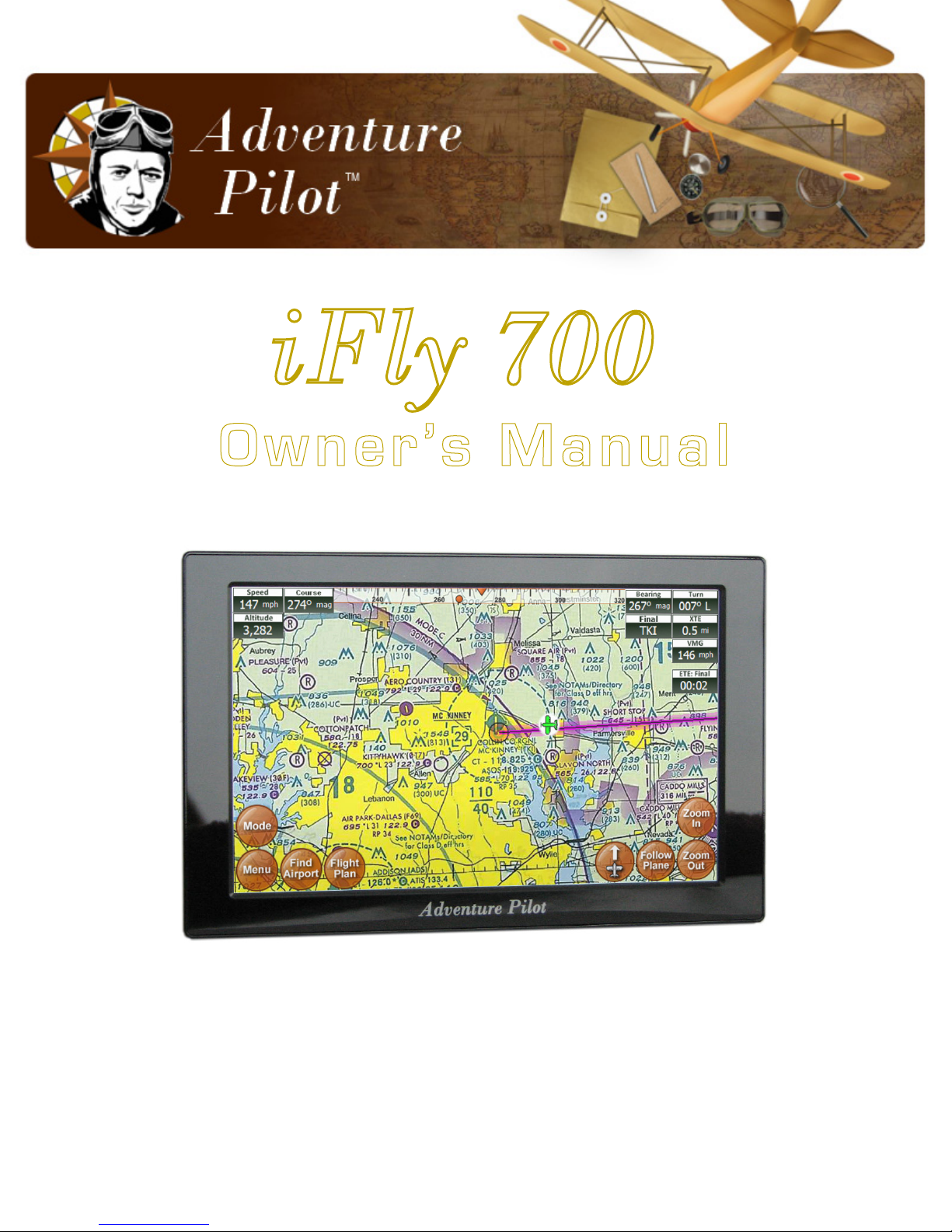
Owner’s Manual
iFly 700™
Copyright 2011 by Adventure Pilot, LLC. iFly 700 is a trademark used by Adventure Pilot, LLC. Version 5, Rev G 05/11

2
Contents
Overview
Package Contents ................................................. 3
Features ................................................................ 3
Warnings .......................................................... 4
GPS and Source Data Notes ........................... 4
General Notes .................................................. 4
Mounting on a Windscreen ............................ 6
Connecting to Power ....................................... 6
Powering On ................................................... 6
Updating your iFly 700 ......................................... 7
Main Display ........................................................ 8
Using the Touch-Screen ........................................ 9
Panning ........................................................... 9
Activating Buttons .......................................... 9
Button Fading ............................................ 9
Switching Sectionals ...................................... 9
Markers ........................................................... 9
Menus and Screens
Main Menu .......................................................... 10
Find Nearest... Menu ..................................... 10
Setup Menu .....................................................11
Instrument Setup Form ............................ 13
Custom Locations Menu ............................... 13
Custom Locations Form ........................... 13
About Menu ................................................... 14
GPS Overview Screen .............................. 14
Mode Menu ......................................................... 15
Possible Actions Menu ....................................... 16
Airport Information Screen ................................ 17
Plate Viewer Screen ....................................... 18
Flight Planning
Flight Planning Options ..................................... 19
Option #1: Create a point-to-point plan by
touching the screen ...................................... 20
Option #2: Find an airport by code or
keyword .......................................................... 21
Fly Direct To Screen .................................. 21
Option #3: Use the Flight Planner ................ 22
Option #4: Rubber-band route
modification ................................................... 24
Airspace Info Form ........................................ 25
Airspace Display Levels ........................... 25
Altitude Planning ........................................... 26
Airspace Alerts .............................................. 27
Extra Features
Using the Remote Control ................................. 28
System Menu ...................................................... 29
Transferring Media Files to Your iFly 700 ..... 30
Video Player Optimal Settings ................. 30
Transferring Audio and Video Files to
the Play List ............................................... 31
Using the Multimedia Player ........................ 32
Using the Video Player .................................. 33
Using the Image Viewer ................................ 33
Changing Configuration Settings ................. 34
Using the Clock .............................................. 35
Using the Text Viewer .................................... 35
Using the Memo Screen ............................... 36
Using the Calculator ...................................... 36
Playing the Card Game ................................. 37
Using an External Audio/Video (AV) Device ... 37
Using an External Camera ............................ 38
Using NMEA Output ...................................... 38
Additional Information
Frequently Asked Questions .............................. 39
Specifications ...................................................... 40
FCC Information .................................................. 40
Limited Warranty................................................. 41

3
Features
Interface
Extensive zoom levels from 2 to 100 NM per inch
Touch-n-drag scrolling, works even in turbulence
Single-touch zoom in/out
Center and auto-track with a single touch
“View Charts” button switches between
bordering sectionals at a single touch
Night Mode darkens and inverts colors at night
Plug-and-fly autopilot capability
Spatial Awareness
Pre-loaded with FAA published sectionals, charts,
plates and more
Critical and important airspaces are highlighted
and shaded
Reference distance and bearing to any point on
the chart with a single touch of the screen
“Find Airport” button shows a list of the nearest
airports with immediate navigational aids such as
distance, turn, and ETE
Distance rings around your current position
FAA published TFRs on all sectionals and charts
FAA Charts
Includes all sectionals, low enroute charts,
approach, and departure plates
Explore charts with touch-sensitive panning and
zooming
Reference actual FAA airport taxi diagrams;
includes alpha-numerics for cutoffs and parallels
“History” button toggles between charts,
previously viewed airport details, and plates
Sectionals and plates include all of the “Border”
and “Legend” data as shown on FAA charts
Simple update process at www.iflyGPS.com
Flight Planning
“Direct-to” flight planning
Easily create multi-leg flight plans directly from
the sectional or flight planner
“Rubber-band” route line modifications (touch
and drag a route line to bend it around an
airspace)
Vertical speed to target for custom waypoints
with specific altitudes (a 3-D flight plan)
Save/load/reverse flight plans
Flight plan is automatically saved and restored
between power cycles
Search for airports by code, airport name, or city
name
Airport Information
Geographical data
Public and private airports
Attendance schedule
Communication information
Full runway information, including a thumbnail
with quick reference numbers
Traffic patterns with pattern altitude (if published)
Available IFR equipment
Obstructions
Additional FAA remarks
Data Updates
Unlimited updates from any internet-connected
computer (with a low-cost annual data
subscription)
Quickly update the latest TFR and Metar data
prior to your flight
Download software updates at www.iflyGPS.com
and always have the latest new features
Package Contents
iFly 700
Carrying Case
Window Mount
Remote Control
AC Adapter
Cigarette Lighter Adapter
SD Card
Quick Start Guide
Overview

4
Overview
Warnings
Carefully review this Owner’s Manual and make sure you thoroughly understand iFly 700’s functionality and
operation before attempting to use the unit during actual flight.
Do not install the iFly 700 where it obstructs the pilot’s field of view or interferes with operating controls.
The flight indicators shown on the iFly 700 are based on GPS-derived data and may differ from the aircraft’s
instruments.
The altitude shown on the iFly 700 is geometric height above Mean Sea Level and may differ from the altitude
displayed by pressure altimeters. Always use the pressure altitude displayed by your aircraft’s altimeter for
determining aircraft altitude.
While flying, compare indicators from the iFly 700 with other available navigation sources, including the
information from cockpit gauges, other NAVAIDs, visual sightings, charts, etc. Although unlikely, it is
possible for erroneous operation to occur with the iFly 700. It is the responsibility of the pilot to resolve any
discrepancies before continuing navigation.
GPS and Source Data Notes
The United States government operates the Global Positioning System (GPS) and is solely responsible for
its accuracy and maintenance. The GPS system is subject to changes which could affect the accuracy and
performance of the iFly 700.
Interference from GPS repeaters operating inside nearby hangars can cause an intermittent loss of altitude
and heading displays while the aircraft is on the ground.
The data contained in the terrain and obstacle databases comes from government agencies. Adventure Pilot
cannot guarantee the accuracy and completeness of the data.
Temporary Flight Restriction (TFR) data is provided by the FAA and may not be updated outside of normal business
hours. Confirm data currency through alternate sources and contact your local FSS for interpretation of TFR.
Do not use outdated sectional maps. Sectionals must be updated regularly to ensure that the information is
accurate. Pilots using outdated sectionals do so at their own risk.
General Notes
Avoid using any chemical or abrasive cleaners on the touchscreen and/or plastic casing. Clean the
touchscreen with a soft, clean, lint-free cloth. Use water, isopropyl alcohol, or eyeglass cleaner, if needed.
The iFly 700 does not contain any user-serviceable parts. Repairs should only be made by an authorized
service center. Unauthorized repairs or modifications could void both the warranty and the pilot’s authority to
operate this device under FAA/FCC regulations.
All visual depictions contained within this document, including screen images, are subject to change and may
not reflect the most current iFly 700 GPS receiver. Depictions may differ slightly from the actual unit.
Use of polarized eye wear may cause the flight displays to appear dim or blank.
Only use the power adapters provided with the iFly 700 or recommended by Adventure Pilot LLC.
Do not leave the iFly 700 in extremely high or low temperatures. Do not use in a humid environment or
submerge in water.
Do not place near magnets or large speakers. Do not put gold, metallic objects, or electric wave emitting
objects around the iFly 700.
5
Overview
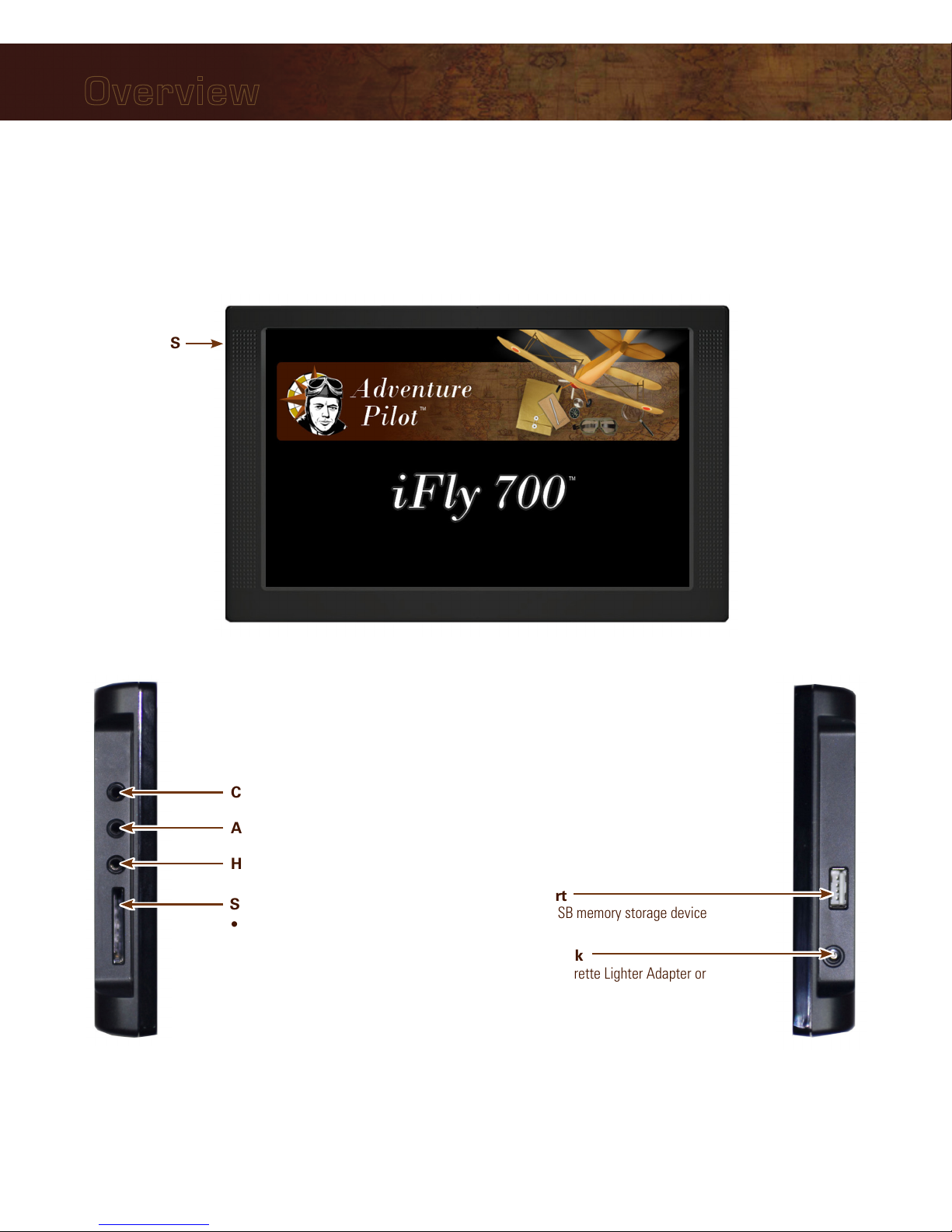
Power Jack
Connect Cigarette Lighter Adapter or
AC Adapter
USB Port
Connect USB memory storage device
SD/MMC Memory Card Slot
• Included 4G SD card contains iFly 700
applications and data
• Card must be inserted for unit to
operate
• Do not remove or modify files
Headphone Jack
AV In – Connect external video or audio device
Camera – Connect an external camera (not provided)
(on back)
External GPS
Connector
Connect an external
GPS antenna (optional,
not included)
Unit Overview
6
Overview
Mounting on a Windscreen
1. Secure the suction cup to your aircraft’s windscreen.
2. Insert the end of the mounting arm into the keyhole slot on the back of the unit.
3. Tighten the knob closest to the keyhole clockwise until secure.
4. Tighten the next knob clockwise to further secure the unit from vibrating loose.
5. Loosen the two arm adjustment knobs, position the unit as desired, and re-tighten the arm adjustment knobs.
Notes:
• Do not install the iFly 700 where it obstructs your field of view or interferes with operating controls.
• After installation, make sure the unit is firmly secured.
Connecting to Power
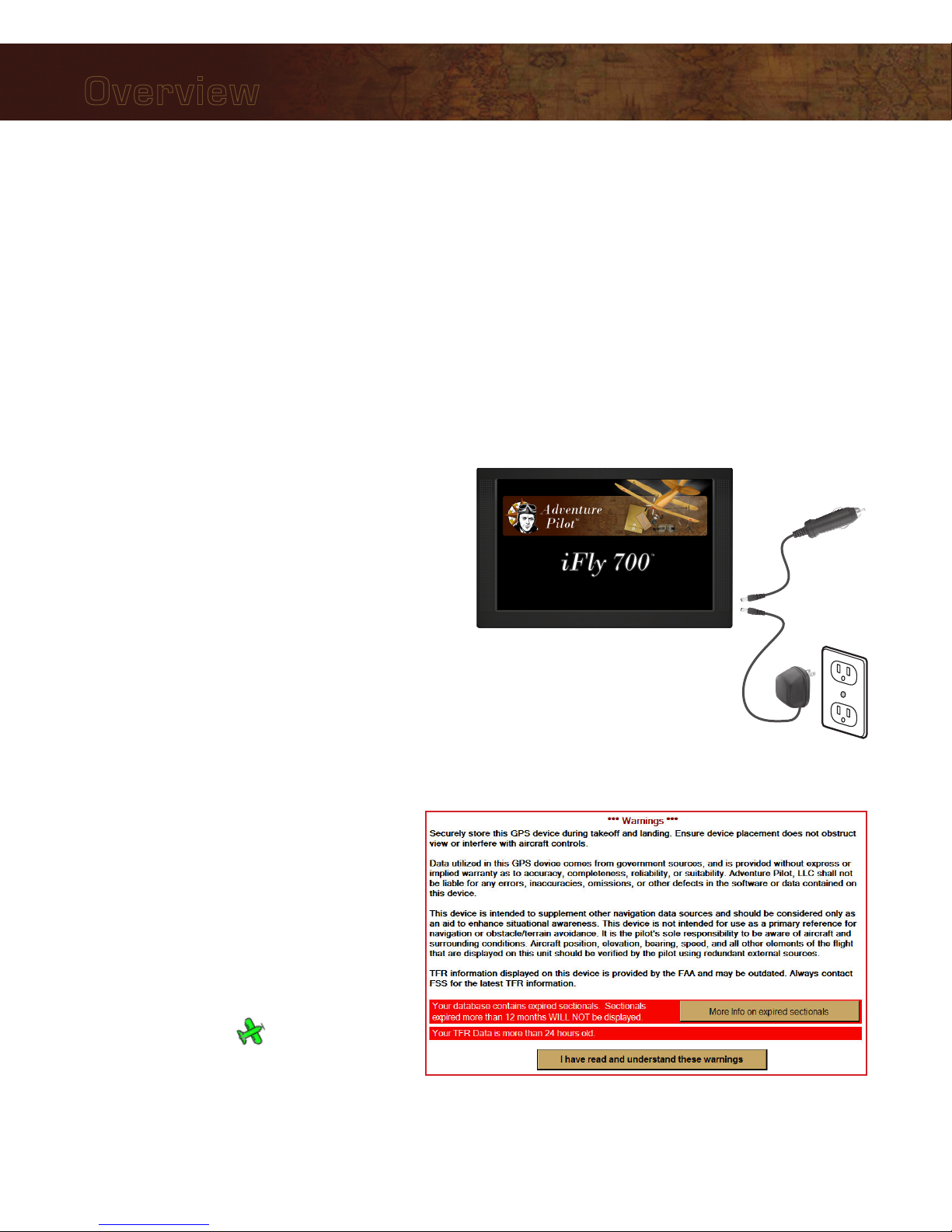
For use in your aircraft, connect the barrel end of the
included cigarette lighter adapter into the jack of the
iFly 700. Plug the other end into a DC 12–28V cigarette
lighter (accessory power port).
For use indoors, connect the barrel end of the included
AC adapter into the DC-12V jack of the iFly 700. Plug
the other end into a standard household outlet.
Powering On
1. The unit automatically turns on when connected to
power.
2. The Home Screen is displayed during
initialization while the iFly 700 collects
satellite data and establishes its present
location.
3. After initialization, a dialog box appears
containing safety warnings, and if
applicable, TFR and sectional expiration.
Touch “More info on expired sectionals”
to view the Sectional Information dialog
box.
Touch”I have read and understand these
warnings” to continue.
4. The sectional map of your location is
displayed with an icon representing
your aircraft shown in the center of the
screen.
-or -

7
Overview
Updating your iFly 700
The iFly 700 software, databases, and charts can be updated through the iFly 700 website. To perform the update
you will need: 1) a USB Flash Drive, 2) a login to the website, and 3) a valid update subscription.
The website is http://www.iFlyGPS.com.
If you do not have a login, create one by clicking the “Register” button at the top of the screen. Be sure to keep
your login and password in a safe location. Once registered, it will be necessary to link your new iFly 700 with
your account.
If your purchase included a free trial subscription, activate it by selecting the “Updates / Active Free Trial” option
and entering your iFly 700 serial number and the activation code included with your purchase.
If your purchase did not include a free trial, you will need to purchase a subscription through the online store.
Performing the Update
1. Click the “Updates / Create Update Package” menu option on the website.
2. Insert a USB Flash Drive into your computer.
3. Using the checkboxes on the Updates page, select the items you would like to update.
Notes:
• It is not necessary to update every chart that expires; we recommend you only update data that is relative
to your flights. (If you are planning a cross country trip that takes you into areas you don’t usually fly, you
can download that data at any time prior to your flight.)
• The first three checkboxes in the list: “TFRs & METARS,” “Airport & Navaid Database, and “Software”
should always be updated when available.
4. Click the “Create Update Package” to create your update package. Depending on what you have selected,
this may take a few seconds or more than a minute.
5. When the package is created, you will be able to download the resulting file (called iFlyUpdatePackage.zip) to
your USB Flash Drive.
Note: This step varies greatly based on your computer’s hardware, operating system (OS) (Windows or
MAC), specific OS versions, USB Flash Drive type, and the browser you are using. Please consult your OS or
browser documentation to learn how to download files.
6. Eject or stop the USB Flash Drive.
Note: Do not pull the USB Flash Drive out of your computer without first ejecting or stopping it. Consult
your OS documentation for information on how to eject or stop your USB Flash Drive. If this step is not
accomplished, the file may not be completely copied, and the update process will fail.
7. Insert the USB Flash Drive into the iFly 700, then select Menu Check for Update File. The update
process will commence. Do not disconnect power or attempt to do anything else with the iFly 700 until the
update is complete.

8
Overview
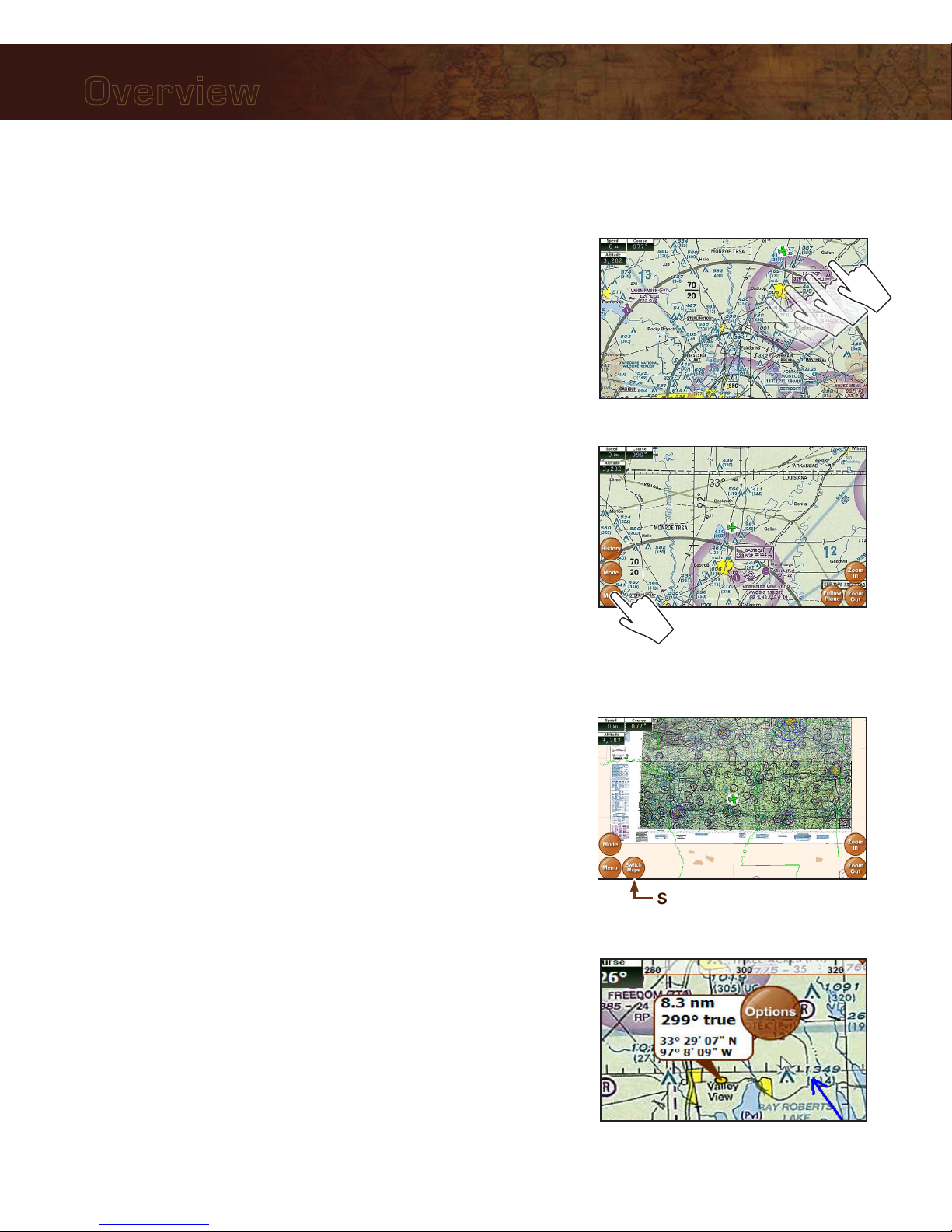
Speed
Use Menu Setup to toggle
between Miles, Kilometers,
and Nautical Miles
Track
The direction your aircraft
is moving relative to true
North
Altitude
Your altitude in feet
above sea level
calculated by GPS
Warning: Always
use your aircraft’s
pressure altimeter
to determine your
exact altitude
Menu
Opens the Main
Menu (see page 10)
Zoom In
Zoom in to read
map details
Zoom Out
Zoom out to view
surrounding areas
and airspaces
Follow Plane
Reposition your current location in
the center of the screen
Location Icon
Indicates your
current location on
the sectional
Mode
Select the map
mode (see page 15)
Find Airport
Shows a list of nearby
airports
Flight Plan
Shows the flight planning
form (see page 22)
Navigation Instruments
Available when a flight plan is active
(see page 19)
Main Display
North-up
Toggles the map display between North-up
and Track-up
• In North-up mode, the chart is always
oriented so that North is up.
• In Track-up mode, the chart is oriented so
that the plane is located at the bottom/
center of the map facing straight up and
the map will rotate as the airplane turns.
Note: If you pan the map, the orientation
will freeze. When you touch Follow
Plane to resume tracking the airplane,
the map will again rotate to maintain
track-up orientation.
History
Shows a list of
recently viewed
Airports and Plates
Alert
Appears when there is
an airspace alert to be
viewed; touch to view
details about the alert
(see page 27
9
Overview
Using the Touch-Screen
Panning
Swipe your finger across the map to move (or “pan”) the view to
another area. Panning temporarily hides all the instruments and
buttons on the map. This can be useful if you need to see text or an
image that is behind something else on the map. For example, the
Altitude instrument may be covering an airport frequency.
Activating Buttons
Activate buttons by touching with your finger and releasing. This works
for buttons on the map (Menu, Zoom In, etc.), and buttons on the
forms and dialog boxes.
Button Fading
In order to maximize the amount of screen available for displaying the
map, the control buttons will fade to be almost invisible after about 30
seconds. However, the buttons are still active in this mode. Touching a
faded button works the same as touching a non-faded button.
Note: You can change button fade settings in the Setup Menu.
Switching Sectionals
Only one sectional is displayed at a time (however, both sides of
the sectional are shown at the same time). To switch to another
sectional, touch the area of the screen that contains the sectional you
wish to view and it will be brought into the foreground. Sometimes
two sectional maps will overlap each other. If you wish to view the
sectional that’s “underneath” the currently display map, touch the
Switch Maps button. The Switch Maps button will only be visible if
two or more sectionals are within the boundary of the current screen.
Markers
Tap the screen with your finger to drop a marker on the map. The
marker displays the distance and course from your current location
plus the latitude/longitude of the spot you touched. It disappears after
about 10 seconds.
You can also place a permanent marker at the location (useful for
keeping track of your distance and course from a particular point on
the map) or access other options by touching the Options button that
appears with the marker. See Possible Actions Menu on page 16.
Switch Maps
Panning the view

10
Main Menu
Access by touching Menu on the bottom left-hand corner of the map display.
Fly Direct To Quickly set a route by entering the airport code or name in the Fly Direct To
Screen (see page 21).
Find Nearest... Find the airport or NAVAID closest to your current location (see below).
Setup Customize display settings (see page 11).
Custom Locations Create and manage custom locations (see page 13).
Check for Update File Update sectionals and application data (see page 7).
About Obtain information about GPS, sectionals, version, and support (see page 14).
System Menu Access additional functions such as the calculator, multimedia, memos, and
connected audio/video devices.
Find Nearest... Menu
These searches will display up to 26 airports or NAVAIDs within 50 NM of your current location. Access by
touching Menu Find Nearest...
Airport
Displays a list of nearby airports. Choose an airport and touch Select to view
information about the airport, including latitude/longitude, public/private, radio
frequencies, runway conditions, and additional information.
Airport w/ Weather
Displays a list of nearby airports that broadcast NOAA weather information.
Choose an airport and touch Select to find weather frequencies. You will need
to tune your radio to the frequency to hear weather information.
NAVAID
Displays a list of nearby Navigational Aids. Choose one and touch Select to
flag the NAVAID location and return to the map display. The newly flagged
NAVAID is shown centered in the display.
Menus and Screens
Autres manuels pour iFly 700
1
Table des matières
Autres manuels Adventure Pilot GPS


