
Actronika skinetic Creators Edition Mode d’emploi

User Manual & Warranty
Version 1.0 - March 23
skinetic.actronika.com
actronika.com
Copyright © 2021-23 Actronika SAS. All rights reserved.

1

Overview
General Information
What’s in the box
Getting Started
Before getting started
Setup your Skinetic vest
After using your Skinetic vest
Basic Operations
LED Status
Connectivity
Compatible Targets
Charging your Skinetic Vest
How to drive Skinetic
Skinetic SDK & Unitouch Studio
Connecting Skinetic to your Computer
Bluetooth:
Pairing
Connecting
Experimental: Multi-Channel Audio Interface
Appendix
Product Specifications
Vest design
Electrical Characteristics
Connectivity
Environment Characteristics
Health & Safety Warnings
Before using Skinetic
Using Skinetic with an Extended Reality Headset
SkineticTM Limited Customer Warranty
Additional Resources
2

Overview
General Information
Skinetic Creators Edition is a cutting-edge haptic vest that uses advanced haptic technology to
create more memorable and immersive sensory experiences. The vest integrates 20 wideband
haptic actuators that are strategically placed, making you feel like you are living in the virtual
environment.
Skinetic Creators Edition is compatible with a wide range of VR systems and is designed to
provide a comfortable and customizable fit for all users.
What’s in the box
When you receive your Skinetic haptic vest, you can expect to find the following items in the
box:
- a Skinetic: Creators Edition vest,
- a Battery,
- a Mesh lining,
- a USB-C Cable.
The vest is ready to use right out of the box and can be charged using the included cable. The
user manual provides detailed instructions on how to use and care for your Skinetic vest.
3

Getting Started
Before getting started
Please be sure to read the present user manual before using the product to ensure a correct
use of the product, safely and properly.
●Carefully read Actronika’s Limited Warranty before testing the product.
●Do not attempt to modify, disassemble or repair the product by yourself.
●Do not use the product outside of the intended purpose.
●Users with sensitive skin should avoid wearing the product with direct contact on the
skin.
●The product is composed of electronic components, it must not be washed in water or
any liquid substance under any circumstances. To clean the product, it is advised to
gently wipe it with a soft cloth.
●The product is not waterproof hence it should be stored in a dry place free from
humidity and moisture.
All support and contact informations on Skinetic products and related software can be found at
https://skinetic.actronika.com/support/
4

Setup your Skinetic vest
Please be sure to read the present user manual before using the product to ensure a correct
use of the product, safely and properly.
Step 1
Connect the power cable, from the bottom of
the Skinetic board, to the output USB C port
of the battery.
Step 2
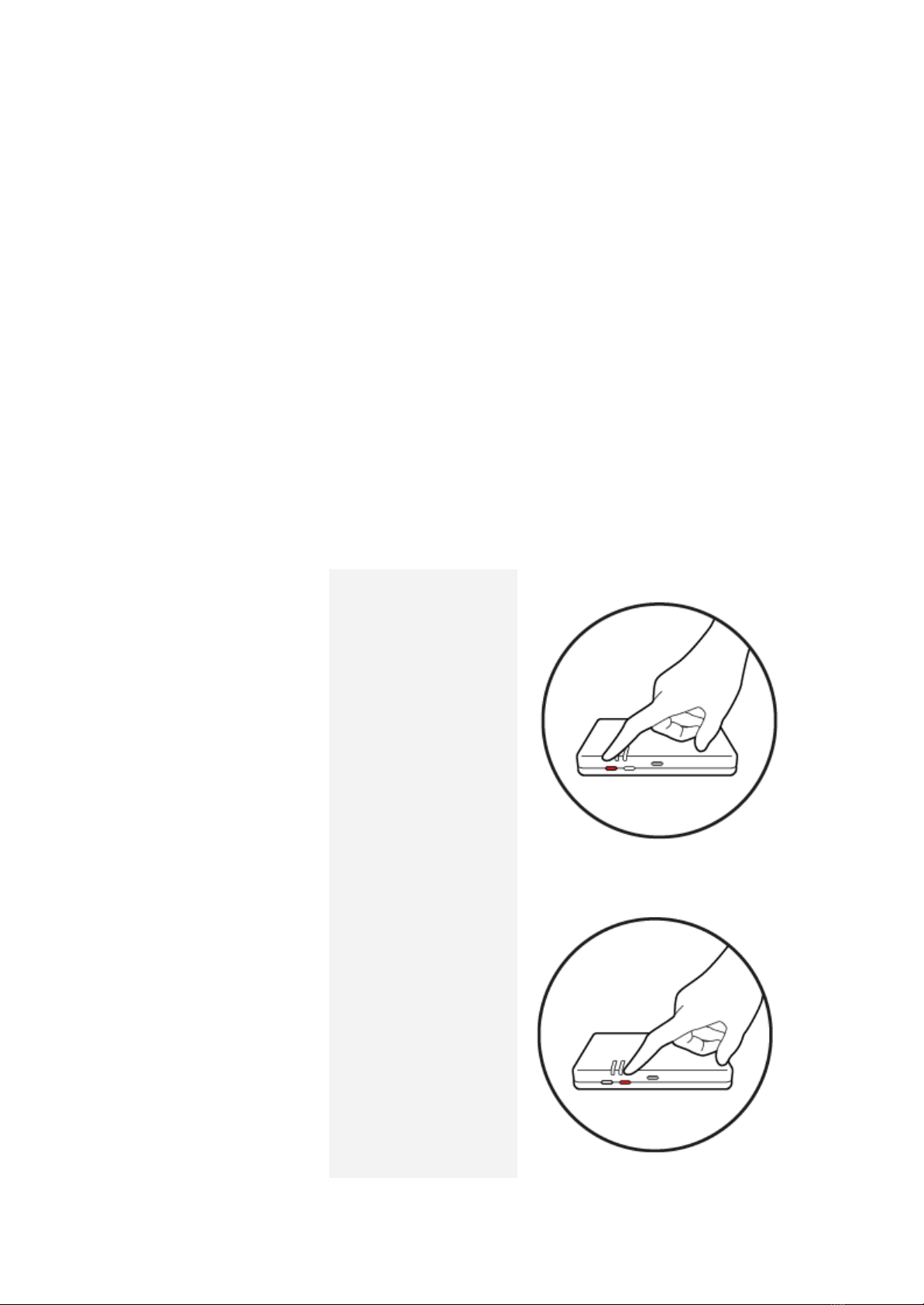
Press the rightmost button to power your
Skinetic on. The vest should vibrate gently to
indicate it is powered on.
Step 3
Dress and zip up
Step 4
Adjust shoulder straps
Step 5
Fit side straps
5
After using your Skinetic vest
1. Close any application that is currently using the vest.
2. Power off the vest by pressing the on/off button. The vest should vibrate from top to
bottom, indicating that it is turned off.
3. In case of t using the Skinetic in its wired mode, unplug the USB cable from the top of
the Skinetic.
4. Take off the vest.
5. Disconnect the power cable from the battery to preserve the battery’s level.
Basic Operations
Turn on/off Skinetic
Press the Power
button for 3 seconds.
Activate/Deactivate
Bluetooth Pairing
Mode
Press the Sync button
for 1 second.
6

LED Status
LEDs State
Description
Left
Right
Power Status
Steady
Green
Power: OK / No issue on Haptics
Steady
Orange
Power limited (<65W) / Haptics will be played, but if more power than available is
required, the vest might go off.
Steady
Red
Not enough power for Haptics / No haptics played
Communication Status
Steady
Green
Connected over USB - Multi Channel Audio Interface
Steady
Cyan
Connected over USB - HID / Skinetic SDK
Steady
Blue
Connected over Bluetooth
Breathing
Blue
Bluetooth pairing
Steady
White
Connected over Wifi
Blinking
white
Wifi not connected
Errors
Blinking
Red
High-temperature detected
Blinking
Orange
Output fault detected
Update Mode
Off
Blinking
Purple
Waiting for update
Blinking
Orange
Blinking
Purple
Update in progress
Note: do not power-off or unplug the vest during the update process
7
Connectivity
Skinetic offers a range of connectivity options to ensure a seamless and customizable
experience. The vest features USB connectivity for wired communication, allowing for a stable
and reliable connection. Additionally, the vest integrates Bluetooth and WiFi capabilities,
enabling wireless communication with a variety of devices.
This flexibility in connectivity options allows users to choose the method that works best for
their specific VR setup. Whether you prefer a wired or wireless connection, Skinetic has you
covered.
Compatible Targets
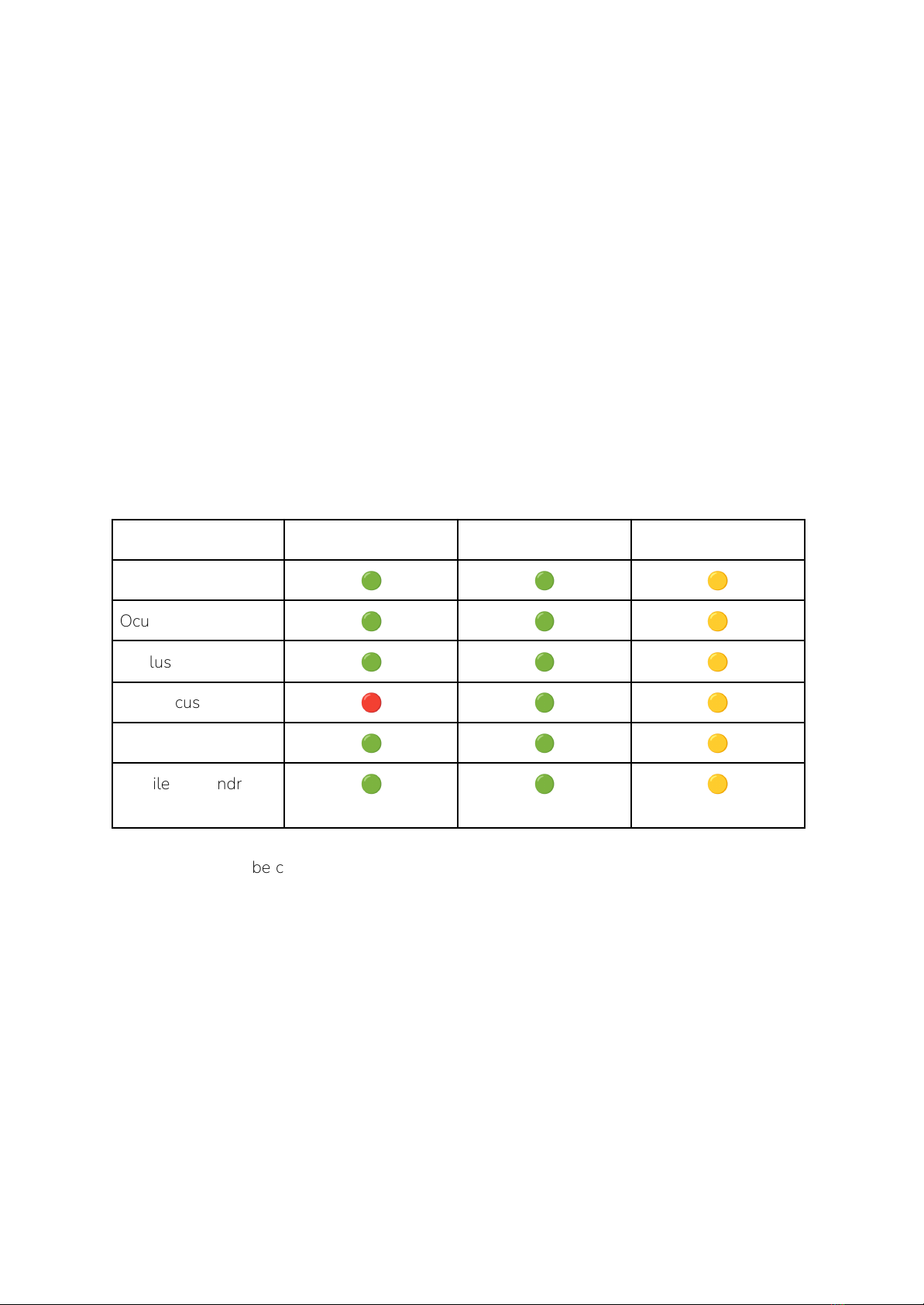
Skinetic’s connectivity has been tested on the following devices:
USB
Bluetooth
WiFi (In Development)
Computer & PCVR
🟢
🟢
🟡
Oculus Quest 2
🟢
🟢
🟡
Oculus Quest Pro
🟢
🟢
🟡
HTC Focus 3
🔴
🟢
🟡
Pico 4
🟢
🟢
🟡
Mobiles on Android
12 and Later
🟢
🟢
🟡
WiFi is thought to be compatible with all listed platforms, and more, we will detail it with the
associated release.
8

Charging your Skinetic Vest
In order to charge your Skinetic: Creators Edition, please follow these steps:
1. Be sure to turn off the vest by pressing on the on/off (rightmost) button.
2. Unplug the battery.
3. Connect the battery to a power source. You can use any USB-C charger. The battery ‘s
LEDs will signal the amount of charge currently.
4. Once the battery is fully charged, unplug the battery’s charger from the power source.
5. Plug the battery back into the vest.
6. Turn on the vest for further usage.
9
Table des matières
Manuels Intervenants populaires d'autres marques


Bowers & Wilkins
Bowers & Wilkins 4 Manuel utilisateur

Sonance
Sonance SONOS OUTDOOR Series Manuel utilisateur

Electro-Voice
Electro-Voice EVID FM4.2 Manuel utilisateur

Pioneer
Pioneer XW-HTD630 Manuel utilisateur

Onn
Onn BWA16AA002 Manuel utilisateur

HP
HP GL313AA - USB Speakers PC Multimedia Manuel utilisateur