
ACE COMPUTERS VISION Series Manuel d'utilisation et d'entretien

8/1/2022
1
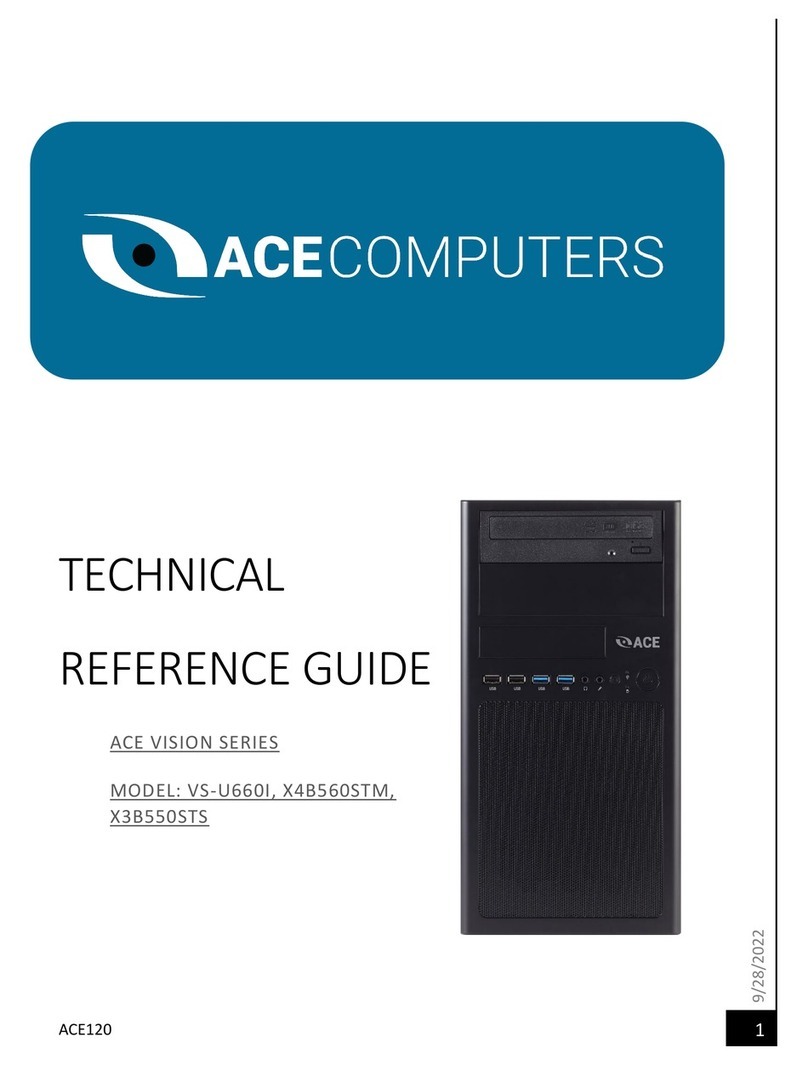
TECHNICAL
REFERENCE GUIDE
ACE VISION SERIES
MODEL: VS-M660I

8/1/2022
2
TABLE OF CONTENTS
DISCLOSURES .................................................................................................................................. 3
INTRODUCTION ............................................................................................................................... 4
ENEGY STAR AND POWER MANAGEMENT ..................................................................................... 5
ILLUSTRATED SYSTEM DISASSEMBLY INSTRUCTIONS..................................................................... 7
TROUBLESHOOTING YOUR PC ...................................................................................................... 27
MAINTENANCE .............................................................................................................................. 29
SOFTWARE UPDATES .................................................................................................................... 30
REMOVAL OF PERSONAL DATA ..................................................................................................... 31
UPGRADES, SERVICE, AND REPAIR ................................................................................................ 34
PRODUCT TAKE BACK, END OF LIFE PROCESSING, and E-WASTE PROGRAM .............................. 36
REVISION HISTORY ........................................................................................................................ 37

8/1/2022
3
DISCLOSURES
The information in this User’s Manual has been carefully reviewed and is believed to be accurate.
The vendor assumes no responsibility for any inaccuracies that may be contained in this document
and makes no commitment to update or to keep current the information in this manual, or to
notify any person or organization of the updates. Please Note: For the most up-to-date version of
this manual, please see our website at www.acecomputers.com.
Ace Computers reserves the right to make changes to the product described in this manual at any
time and without notice. This product, including software and documentation, is the property of
Ace Computers and/ or its licensors, and is supplied only under a license. Any use or reproduction
of this product is not allowed, except as expressly permitted by the terms of said license.
IN NO EVENT WILL Ace Computers BE LIABLE FOR DIRECT, INDIRECT, SPECIAL, INCIDENTAL,
SPECULATIVE OR CONSEQUENTIAL DAMAGES ARISING FROM THE USE OR INABILITY TO USE THIS
PRODUCT OR DOCUMENTATION, EVEN IF ADVISED OF THE POSSIBILITY OF SUCH DAMAGES. IN
PARTICULAR, SUPER MICRO COMPUTER, INC. SHALL NOT HAVE LIABILITY FOR ANY HARDWARE,
SOFTWARE, OR DATA STORED OR USED WITH THE PRODUCT, INCLUDING THE COSTS OF
REPAIRING, REPLACING, INTEGRATING, INSTALLING OR RECOVERING SUCH HARDWARE,
SOFTWARE, OR DATA.
Any disputes arising between manufacturer and customer shall be governed by the laws of Cook
County in the State of Illinois, USA. The State of Illinois, County of Cook shall be the exclusive venue
for the resolution of any such disputes. Ace Computer's total liability for all claims will not exceed
the price paid for the hardware product.
The products sold by Ace Computers are not intended for and will not be used in life support
systems, medical equipment, nuclear facilities or systems, aircraft, aircraft devices,
aircraft/emergency communication devices or other critical systems whose failure to perform be
reasonably expected to result in significant injury or loss of life or catastrophic property damage.
Accordingly, Ace Computers disclaims any and all liability, and should buyer use or sell such
products for use in such ultra-hazardous applications, it does so entirely at its own risk.
Furthermore, buyer agrees to fully indemnify, defend and hold Ace Computers harmless for and
against any and all claims, demands, actions, litigation, and proceedings of any kind arising out of
or related to such ultra-hazardous use or sale.
Unless you request and receive written permission from Ace Computers, you may not copy any
part of this document. Information in this document is subject to change without notice. Other
products and companies referred to herein are trademarks or registered trademarks of their
respective companies or mark holders.
Printed in the United States of America.

8/1/2022
4
INTRODUCTION
Audience
This manual is mainly written for professional system integrators, PC technicians, and end of life
recycling facilities, with the exception of the Energy Management Section, which is written to
provide additional guidance on standard energy settings and configurable energy settings for the
end user.
Resources
If you have any questions regarding this manual or computer
system, please contact our support team through Ace Computers
Support page at support.acecomputers.com
This manual may be periodically updated without notice. Please
check the Ace Computers website for possible updates to the
manual revision level.

8/1/2022
5
ENEGY STAR AND POWER MANAGEMENT
What is Energy Star?
Created by the Environmental Protection Agency (EPA) and the United States Department of
Energy (DOE), the Energy Star program is a strict set of specifications that residential appliances
and construction elements (washers, dryers, refrigerators, freezers, dishwashers, televisions,
tablets, computers, monitors, water heaters, HVAC units, dehumidifiers, air cleaners and
purifiers, lighting, insulation and more) must meet through evaluation and testing to achieve
certification.
The Energy Star rating assures consumers that the product has been EPA and DOE certified to
function as well or better than its peers, while saving money, energy and the environment due
to its greater energy efficiency.
Benefits of Energy Star
Increased Efficiency
Reduced Energy Use
Reduced Utility Bills
Reduced Power Plant Emissions and Carbon Footprint
Wide Selection, Rebates, and Convenience
VS-M660I Power Management Settings “As Shipped”
The default Power Management settings have been selected for compliance with Energy Star and
are recommended by the Energy Star program for optimal energy savings.
Power Management Option Setting
System Sleep Mode After 30 min. of user inactivity
Display Sleep Mode After 10 min. of user inactivity
Primary Hard Drive – “Hard Disk Turn Off” 20 min.
How to wake your computers or monitor from Sleep or Hibernate Mode?
To wake up your computer or monitor from sleep or hibernate, move the mouse or press any key
on the keyboard. If this does not work, press the power button to wake up the computer.

8/1/2022
6
Wake Management
Capable of both remote (via network) and scheduled (via real time clock) wake events
from Sleep Mode.
Provide clients with the ability to centrally manage (via vendor tools) any wake
management settings that are configured through hardware settings if the manufacturer
has control over such features.
WoL (Wake on LAN)
WoL Capabilities/Default Settings Yes No
Has the ability to Enable and Disable WoL for Sleep Mode
WoL Enables from Sleep by default:
WoL Enabled from Off by default:
WoL from Sleep:
WoL from Sleep - Default Settings Yes No
Shipped Enabled Under All Conditions
Shipped Enabled When Operating on AC power only
Shipped Disabled
Shipped Disabled with both client OS and Network Controls to Enable
Feature

8/1/2022
7
ILLUSTRATED SYSTEM DISASSEMBLY INSTRUCTIONS
Introduction
This section of the technical reference guide is intended to provide the following information:
Information on parts requiring selective treatment per WEEE Directive
Disassembly process for removal of external enclosure without tools
Disassembly instructions, including required tools, as applicable
Diagram and/or pictorial representation of all parts in the system
This section of the user manual is intended to provide guidance to end of life recyclers on the
presence of materials and components that require selective treatment, per Article 15 of the EU
WEEE Directive 2012/19/EU.
The provided information should also help direct recyclers to proper methods for removing parts
and general product disassembly instructions. This Chapter also outlines specific substances,
mixtures, and components that must be removed from any separately collected electronic waste
component and shall be disposed or recovered in compliance with Directive 2008/98/EC.
Please note: All the illustrations in the below disassembly instructions are for demonstration only.
The system and components shown in this section are a representative sample.
Replacement Parts
Refer to section “UPGRADES, SERVICE, AND REPAIR” for information on how to obtain
replacement components for your VS-M660I.
CAUTION: Always power off the system and unplug the power cord(s) before opening the
side panel to access the internal components.
Attention! Electrostatic discharge potential.
Your computer’s internal components are highly susceptible to risk of damage from
electrostatic discharge (static electricity, which occurs naturally on your body due to friction). To
avoid damaging your equipment, always earth yourself to your computer system before opening
the computer’s chassis or handling any internal component(s).

8/1/2022
8
Representative Desktop Component Layout
Please note the illustration below is a representative sample of the VS-M660I, your PC may
include additional components or variations of this family configuration.
Figure 1
Heat Sink
Fan
Processor Memory (2-
4 DIMMS)
Power Supply
Case Fan
HDD Storage
Device
Optical Drive
Graphics
Card
M.2 SSD
Storage
Motherboard

8/1/2022
9
Chassis Cover Removal
Location: In order to access the internal components of your system, you will need to remove the
left cover of the chassis.
Type and number of fastenings: Two thumb screws
Tools required: None, thumb screws are intended to be unfastened with your thumb and
forefinger.
Procedure:
Step 1: Ensure the desktop is off, unplugged, and any potential energy is dissipated.
Step 2: Unfasten the (2) thumb screws on the left side rear, top and bottom, at the rear of the
chassis.
Step 3: Once removed, slide the chassis side panel parallel to the chassis towards the rear, this
will disengage the various tabs that are holding the panel to the chassis.
Disposal:
Selective Treatment/Special Handling Per
Annex VII, Directive 2012/19/EU: None

8/1/2022
10
Data Storage Devices
Location: The VS-M660I desktop series has the option to utilize both spinning hard drives (HDD)
and M.2 SSD storage devices. The storage devices are located as indicated in Figure 1.
Type and number of fastenings: HDD = (4) Phillips screws, M.2 SSD = (1) Phillips screw.
Tools required:
HDD = Screwdriver with PH2 bit
M.2 SSD = Screwdriver with PH1 or smaller bit.
Procedure:
HDD = Bottom mount
Step 1: Ensure the desktop is off, unplugged, and any potential energy is dissipated.
Step 2: Remove the side panel from the chassis as indicated in the “Chassis Cover” section of this
manual.
Step 3: The HDD is mounted to the bottom of the chassis. Turn the chassis on the side, the screws
are located on the bottom of the chassis. While you are unfastening the screws be sure to secure
the HDD so it does not fall and damage any of the components.
Disposal:
Selective Treatment/Special Handling Per Annex VII, Directive 2012/19/EU: The HDD
contains a printed circuit board of greater than 10 sq. cm and must be removed from the
device and must be disposed of, or recovered, in compliance with the requirements of Directive
2008/98/EC.
Ce manuel convient aux modèles suivants
1
Table des matières
Autres manuels ACE COMPUTERS Ordinateur de bureau

ACE COMPUTERS
ACE COMPUTERS VS-M690I Manuel d'utilisation et d'entretien

ACE COMPUTERS
ACE COMPUTERS ACE VISION Series Manuel d'utilisation et d'entretien
ACE COMPUTERS
ACE COMPUTERS VS-U660I Manuel d'utilisation et d'entretien

ACE COMPUTERS
ACE COMPUTERS VS-S610I Manuel d'utilisation et d'entretien

ACE COMPUTERS
ACE COMPUTERS Force 12 Manuel d'utilisation et d'entretien


