Accelerated 6200-FX Manuel utilisateur

© 2015 Accelerated Concepts Intellectual Property. All rights reserved. Accelerated Concepts, the Accelerated logo and all other Accelerated Concepts marks contained
herein are trademarks of Accelerated Concepts. All other marks contained herein are the property of their respective owners. Images are shown for illustrative purposes
only; individual experience may vary
Accelerated Concepts
Cellular Extender
6200-FX Trouble Shooting Guide
Version 1.5

Accelerated Concepts, Inc. © 2015 2of 16 6200-FX Troubleshooting Guide v1.3
Table of Contents
Initial Setup/Power On .................................................................................................................................................3
Startup and Troubleshooting ........................................................................................................................................4
Connections ..................................................................................................................................................................5
USB modem ..................................................................................................................................................................... 5
Ethernet Cable ................................................................................................................................................................. 6
Power............................................................................................................................................................................... 7
Ethernet Options.............................................................................................................................................................. 8
Location ........................................................................................................................................................................9
Restore Default Settings .............................................................................................................................................10
Start-up ......................................................................................................................................................................12
LEDs ............................................................................................................................................................................12
Real-Time Management..............................................................................................................................................14
Remote Control.............................................................................................................................................................. 14
SMS ................................................................................................................................................................................ 14
Required Network Access for 6200-FX General Connectivity ......................................................................................15
Technical Support .......................................................................................................................................................16

Accelerated Concepts, Inc. © 2015 3of 16 6200-FX Troubleshooting Guide v1.3
Initial Setup/Power On
Before powering on the 6200-FX ensure you have the following equipment:
USB Modem
SIM card (optional, only required if modem uses a SIM)
Ethernet Cable
6200-FX power supply (Or POE, see Power section)
Client Device (Router/Laptop)
1. Insert SIM into USB Modem, if required
2. Insert Modem into 6200-FX (see USB Modem section)
3. Insert one end of Ethernet Cable into 6200-FX and the other into the appropriate port on the
Client Device (see Ethernet Cable section)
4. Connect the 6200-FX power supply and turn it on.
5. Wait 30 seconds
6. Refer to the "Startup and Troubleshooting" section for more instructions.

Accelerated Concepts, Inc. © 2015 4of 16 6200-FX Troubleshooting Guide v1.3
Startup and Troubleshooting

Accelerated Concepts, Inc. © 2015 5of 16 6200-FX Troubleshooting Guide v1.3
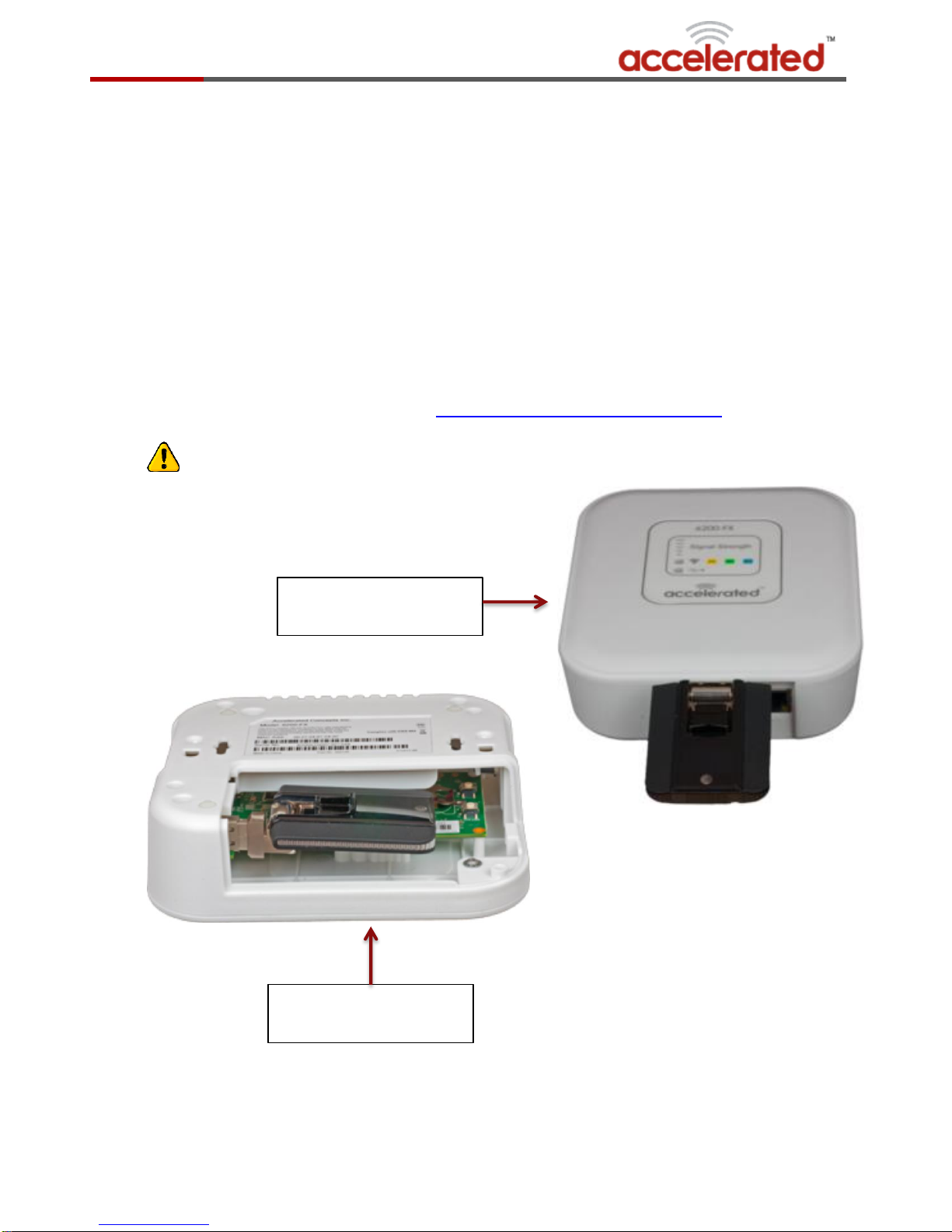
6200-FX with External
Modem
6200-FX with Internal
Modem
Connections
In order for the 6200-FX to function properly all connections must be correct. If the 6200-FX device is
not working properly, first ensure that the unit has been properly set up. The following needs to be
connected to the 6200-FX:
USB modem
A supported USB modem must be inserted into either the internal or external USB port. A list of
supported USB modems can be found at: http://acceleratedconcepts.com/support
The 6200-FX device only operates with one USB modem at a time. Do not plug a USB
modem into both the USB ports on the unit.

Accelerated Concepts, Inc. © 2015 6of 16 6200-FX Troubleshooting Guide v1.3
Ethernet Cable
An Ethernet cable is connected to both the Ethernet port on the 6200-FX and the end device (client
computer, AT&T VPN 8200, router, etc.). If the device is a router or AT&T VPN 8200, the Ethernet
cable should be inserted into either the Internet, WAN, or Uplink port (see device’s User Guide)
Ethernet Port
WAN Port / Internet Port

Accelerated Concepts, Inc. © 2015 7of 16 6200-FX Troubleshooting Guide v1.3
Power
A 12-volt AC power supply, a passive PoE injector cable, or an optional 12-volt battery pack must be
used to power the 6200-FX.
The 6200-FX device can only operate with one supply of power.
DO NOT supply power to the device with both the PoE cable and the 12-volt battery/12-volt
AC power supply.
The optional 12-volt battery supplied with the 6200-FX device typically has a life of 2-3 hours.
The 12-volt battery is not intended to be a permanent power source for the unit. If the 12-
volt battery is being utilized be sure you are using a new battery.
Passive PoE injector
cable
12-volt power supply
Optional Battery Pack

Accelerated Concepts, Inc. © 2015 8of 16 6200-FX Troubleshooting Guide v1.3
Ethernet Options
The 6200-FX device is by default configured for Auto-negotiation, but can be configured for a different
Ethernet negotiation setting. Below is a list of the Ethernet negotiation settings that the 6200-FX can
be configured to.
10 Mbps Full Duplex
100 Mbps Full Duplex
10 Mbps Half Duplex
100 Mbps Full Duplex
Auto-negotiation
While in this setting, the 6200-FX device communicates with the device connected
to the other end of the Ethernet cable and chooses the highest performance
transmission mode that both devices support. This is typically 100 Mbps Full
Duplex.

Accelerated Concepts, Inc. © 2015 9of 16 6200-FX Troubleshooting Guide v1.3
Do not place the 6200-FX device in a metal enclosure! Also, ensure that
there are no other wireless communication devices (cell phones, wireless
routers, etc.) within 1 ft. of the unit
Location
The placement of the 6200-FX device at a particular site greatly affects the signal received from the
cellular network. To maximize signal strength, do the following:
Ensure that a cellular network tower is in the vicinity of the site where the 6200-FX is located.
Contact your cellular provider for further information.
Place the 6200-FX in an open space as far from the floor as possible within the site. Ensure that
the location where the unit is placed is free of electrical interference (magnetic fields, other
cellular devices, etc.)

Accelerated Concepts, Inc. © 2015 10 of 16 6200-FX Troubleshooting Guide v1.3
Restore Default Settings
Restoring a 6200-FX device to factory default settings will clear out the settings obtained from the
6200-FX’s remote configuration and load the factory default settings. To restore a 6200-FX device
back to default settings, perform the following steps:
1. Power off the 6200-FX for at least two seconds.
2. Remove all USB devices from the 6200-FX.
3. Unscrew the modem cover from bottom of unit. Remove the cover to expose modem and
default reset switch.
4. Power on the 6200-FX and wait 30 seconds for the device to complete startup.
a. Note: at this point the only light that should be illuminated is a red USB LED.
5. Press the “Default Reset” button located on the circuit board of the 6200-FX.
6. Once the Default configuration button is pressed, ensure that the USB and Wireless LEDs of the
6200-FX are alternately flashing red and green. This indicates that the 6200-FX is applying the
default configuration.
7. Wait for the 6200-FX to reboot and apply the changes. Once the USB LED illuminates red and all
other lights are off, it is safe to power off the 6200-FX
8. Insert the modem cover and secure with screw.
Default Reset Switch
Autres manuels pour 6200-FX
3
Table des matières
Autres manuels Accelerated Extenseur