
Accel T Series Manuel utilisateur
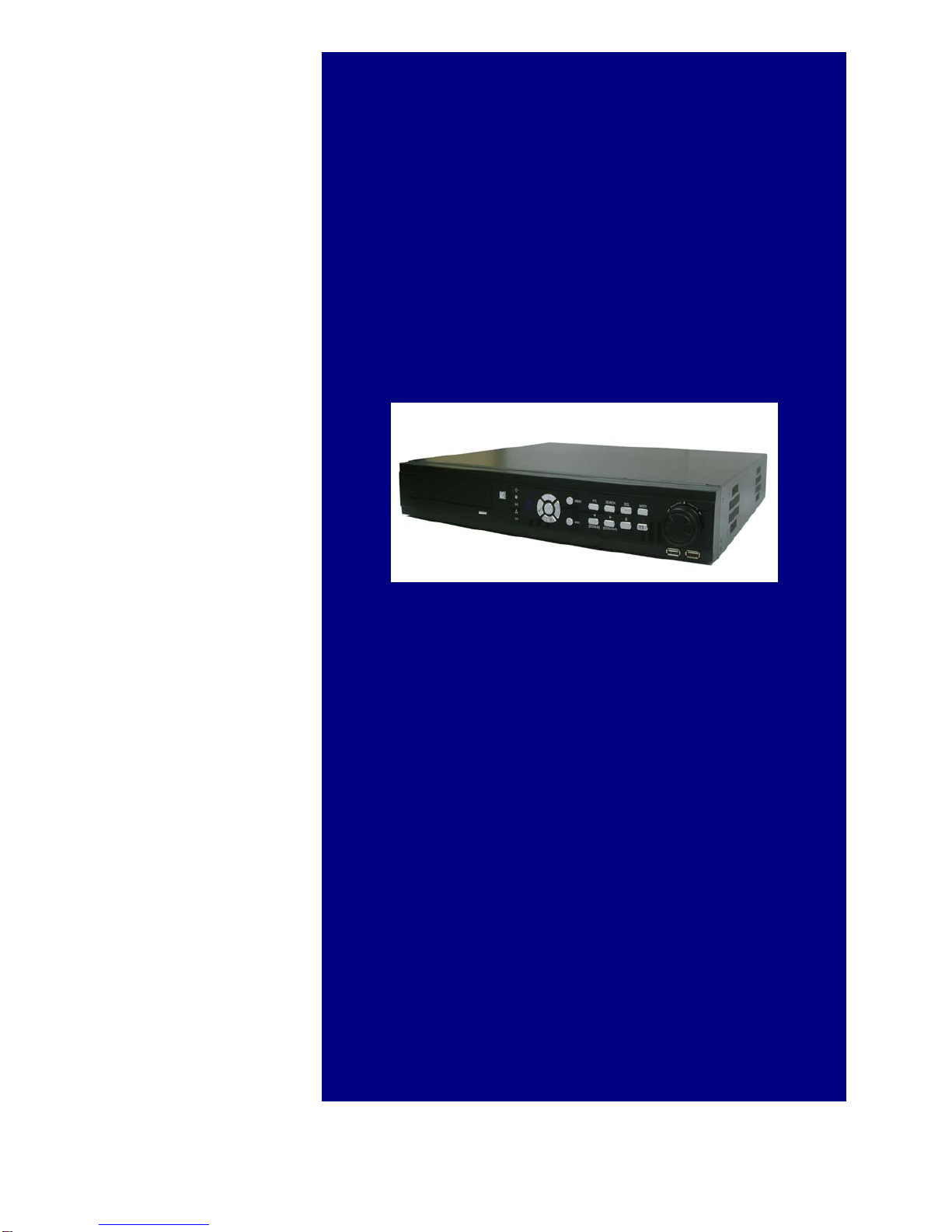
L
Li
iv
ve
e
/
/
S
Se
ea
ar
rc
ch
h
/
/
B
Ba
ac
ck
ku
up
p
U
US
SE
ER
R
M
MA
AN
NU
UA
AL
L
T
T
S
Se
er
ri
ie
es
s
D
Di
ig
gi
it
ta
al
l
V
Vi
id
de
eo
o
R
Re
ec
co
or
rd
de
er
r

T Series
UserManual_Version 200807 2
About This Manual .....................................................................................................................4
Front Panel.................................................................................................................................5
Remote Control........................................................................................................................11
Mouse ......................................................................................................................................12
Live Surveillance......................................................................................................................13
Surveillance Screen ..............................................................................................................................13
Main Menu.............................................................................................................................................16
Screen Operations ................................................................................................................................17
Digital PTZ.............................................................................................................................................18
Freeze ................................................................................................................................................... 19
Dynamic PTZ.........................................................................................................................................20
Video Search (and Replay)......................................................................................................22
Search Options...................................................................................................................................... 23
Calendar Search ...............................................................................................................................24
Motion Search...................................................................................................................................26
Event Search.....................................................................................................................................28
Search Screen....................................................................................................................................... 30
Selecting camera ..............................................................................................................................31
Selecting Speed ................................................................................................................................32
Changing Screen Division................................................................................................................. 32
Search Menu.....................................................................................................................................33
System Log Search..................................................................................................................34
Sensor Log............................................................................................................................................35
Camera (Video) Loss Log.....................................................................................................................35
System Log............................................................................................................................................36
Backup.....................................................................................................................................37
Backup Preparation...............................................................................................................................37

T Series
UserManual_Version 200807 3
Backup Process .................................................................................................................................... 38
Replaying Backed Up Video .................................................................................................................40
Replaying with MS Media Player......................................................................................................40
Replaying with Simple Video Viewer ................................................................................................41
Replaying with Remote Client Program............................................................................................43

T Series
UserManual_Version 200807 4
About This Manual
This manual describes system from system usage perspective.
Descriptions include
•Front panel buttons
•Remote controller buttons
•Mouse buttons
•Live surveillance - screen components, functions and features for live monitoring
•Search – screen components, functions and features for searching and replaying recorded data.
•Backup & replay – copy recorded data and replay

T Series
UserManual_Version 200807 5
Front Panel
Power Button
Turn on the system
CD-R/W or DVD-R/W
Backup media device
USB2.0 Ports
- Mouse connection
- Backup USB stick/Drive
2
1
3
2
3
1

T Series
UserManual_Version 200807 6
LED Light Group
Power
Red - Stand-by
Red Flickering – Booting
Green - Operation
HDD
ON – operational
OFF – not recognized
Alarm
ON or BLINKING – one or more sensors are active
Network Connection
ON – connected
OFF – not connected to network
Recording
ON – recording
OFF – not recording
Cursor (Arrow) buttons
▲| ►| ▼| ◄
Arrow Button
Move cursor
In setup menu: used to move from one menu item to adjacent menu item.
In live display mode: move from one display to the next.
In PTZ camera control mode: used to pan left or right, or to tilt up or down.
2
1

T Series
UserManual_Version 200807 7
Enter
Center button
Selection or Enter
In live multiple division display mode: selects one channel.
In setup menu: used to select an menu item.
In data entry mode: finishes data entry
MENU button
MENU Enter to Menu Mode
In live display mode: enters into system setup display. Then turn off the
system or set system configuration.
PTZ button
PTZ Enter to Menu Mode
In live display mode, enter into PTZ camera control mode. Then control pan
and tilt using ▲| ►| ▼| ◄buttons.
SEARCH button
SEARCH Enter to Video Search Mode
In live display mode: enters into video search mode. Then trieve video by
time, date, or event.
SEQ button
SEQ Enter to Video Display Sequencing Mode
(See MODE button description)
In live display mode: enters into display sequencing mode. When screen
division can accommodate less cameras (e.g. screen display division selected
is 9 division and the system is 16 channel system), camera images are
6
5
4
3

T Series
UserManual_Version 200807 8
displayed in groups (e.g. images of first 9 cameras are displayed and followed
by next 7 camera images. Then followed by first 9, alternating.).
MODE button
MODE Changes screen display division
Following screen divisions are possible.
Single 4 division 4,8,16 channel system
6 division 8 division
9 division 8,16 channel system
10 division 13 division
16 division 16 channel system
Jog / Shuttle
JOG Device for Frame search
One frame is replayed to the forward direction per each movement of JOG in
case of the clockwise direction. Previous key frame is replayed per each
movement of JOG in case of backward replay mode. Key frame is the frame
that has complete image in MPEG.
SHUTTLE Device for Speed search
Forward and backward replay of video. Display speed can vary from 1X, 2X,
4X, 8X, 16X or 32X of normal (1X) speed.
When audio playback is enabled, forward or backward speed will not change
and remain at normal speed.
ESC Button
ESC Cancel current mode or Return to previous selection
9
8
7

T Series
UserManual_Version 200807 9
◄Play backward / Zoom In Button
◄/ Zoom In Replay mode: Backward x1 times replay speed
PTZ Mode: Used for the screen Zoom in
►Play forward / Zoom Out Button
►/ Zoom Out Replay mode: Forward x1 times replay speed
PTZ Mode: Used for the Screen Zoom out
Pause Button
Pause replay (applicable only replay mode)
Record Button
Emergency Recording Start / Stop
By pressing this button, all channels start recording at maximum recording
using CIF resolution, regardless of recording setup. During the emergency
recording period, the current time is displayed by blue and dark green from
yellow color display.
USB 2.0 Ports
USB Ports
For connecting USB stick memory, USB CD/RW and USB HDD as
backup devices.
For connecting mouse
14
13
12
11
10

T Series
UserManual_Version 200807 10
Infra-Red (IR) Receiver
IR (Infra Red) remote controller receiver
Remote control must be pointing at this receiver to work properly.
15
Autres manuels pour T Series
1
Table des matières
Autres manuels Accel DVR


