ABRITES MODI Manuel utilisateur


2
Important notes
Warranty
The Abrites software and hardware products are developed, designed and manufactured by Abrites Ltd.
During the production process we comply to all safety and quality regulations and standards, aiming at
highest production quality. The Abrites hardware and software products are designed to build a coherent
ecosystem, which effectively solves a wide range of vehicle-related tasks.
The Mobile diagnostic interface (MODI) is providing access to car health check and hundreds of activa-
tions and custom options.
Full vehicle scan
See Live or graph data
Coding and adaptations
Clear fault codes
All software and hardware products by Abrites Ltd. are copyrighted. Permission is granted to copy Abrites
software files for your own back-up purposes only. Should you wish to copy this manual or parts of it, you
are granted permission only in case it is used with Abrites products, has “Abrites Ltd.” written on all copies,
and is used for actions that comply to respective local law and regulations.
You, as a purchaser of Abrites hardware products, are entitled of a two-year warranty. If the hardware
product you have purchased has been properly connected, and used according to its respective instruc-
tions, it should function correctly. In case the product does not function as expected, you are able to
claim warranty within the stated terms. Abrites Ltd. is entitled to require evidence of the defect or mal-
function, upon which the decision to repair or substitute the product shall be made.
There are certain conditions, upon which the warranty cannot be applied. The warranty shall not apply to
damages and defects caused by natural disaster, misuse, improper use, unusual use, negligence, failure to
observe the instructions for use issued by Abrites, modifications of the device, repair works performed by
unauthorized persons. For example, when the damage of the hardware has occurred due to incompatible
electricity supply, mechanical or water damage, as well as fire, flood or thunder storm, the warranty does
not apply.
Each warranty claim is inspected individually by our team and the decision is based upon thorough case
consideration.
Read the full hardware warranty terms on our website.
Abrites MODI User Manual
modi.abrites.com

3
Copyright information
Safety information
Copyright:
All material herein is Copyrighted ©2005-2022 Abrites, Ltd.
Abrites software, hardware, and firmware are also copyrighted
Users are given permission to copy any part of this manual provided that the copy is used with Abrites
products and the “Copyright © Abrites, Ltd.” statement remains on all copies
“Abrites” as used in this manual synonymous with “Abrites, Ltd.” And all it’s affiliates
The “Abrites” logo is a registered trademark of Abrites, Ltd.
Notices:
The information contained in this document is subject to change without prior notice. Abrites shall
not be held liable for technical/editorial errors, or omissions herein.
Warranties for Abrites products and services are set forth in the express written warranty statements
accompanying the product. Nothing herein should be construed as constituting any additional war-
ranty.
Abrites assumes no responsibility for any damage resulting from the use, misuse, or negligent use of
the hardware or any software application.
The Abrites products are to be used by trained and experienced users in diagnostics and reprogramming
of vehicles and equipment. The user is assumed to have a good understanding of vehicle electronic sys-
tems, as well as potential hazards while working around vehicles. There are numerous safety situations
that cannot be foreseen, thus we recommend that the user read and follow all safety messages in the
available manual, on all equipment they use, including vehicle manuals, as well as internal shop docu-
ments and operating procedures.
Some important points:
Block all wheels of the vehicle when testing. Be cautious when working around electricity.
Do not ignore the risk of shock from vehicle and building-level voltages.
Do not smoke, or allow sparks/flame near any part of the vehicle fuel system or batteries.
Always work in an adequately ventilated area, vehicle exhaust fumes should be directed towards the
exit of the shop.
Do not use this product where fuel, fuel vapours, or other combustibles could ignite.
In case any technical difficulties occur, please contact the
Abrites Support Team by email at support@abrites.com.
Abrites MODI User Manual
modi.abrites.com


5
Abrites MODI User Manual
modi.abrites.com
I. Introduction
As the world’s modern society moves forward, it is inevitable to try and look for more means to combine
efficiency with comfort and practicality. It is because we at Abrites understand the problematics and
necessities of this “fast-paced” reality, that we did our best to develop our new product in a way where
results could be seen in the matter of seconds, requiring only a smart-phone or a tablet.
The Abrites Mobile Diagnostics Interface is a convenient, reliable and efficient hand-held device used
together with Android or iOS based mobile devices, in order to provide you with the opportunity to run
swift mobile diagnostics of your vehicle, so you can distinguish any fault codes in specific modules.
Another great feature that the Abrites MODI provides is that the device allows easy actuation of various
components of the selected vehicle, as well as making queries concerning live data from different mod-
ules. Simultaneously with this, the Abrites Mobile Diagnostics Interface is also programmed to portray
this live data graphically.
Abrites Mobile Diagnostics Interface looks like this:
6
Abrites MODI User Manual
modi.abrites.com
II. Using the Abrites MODI
1. Installation
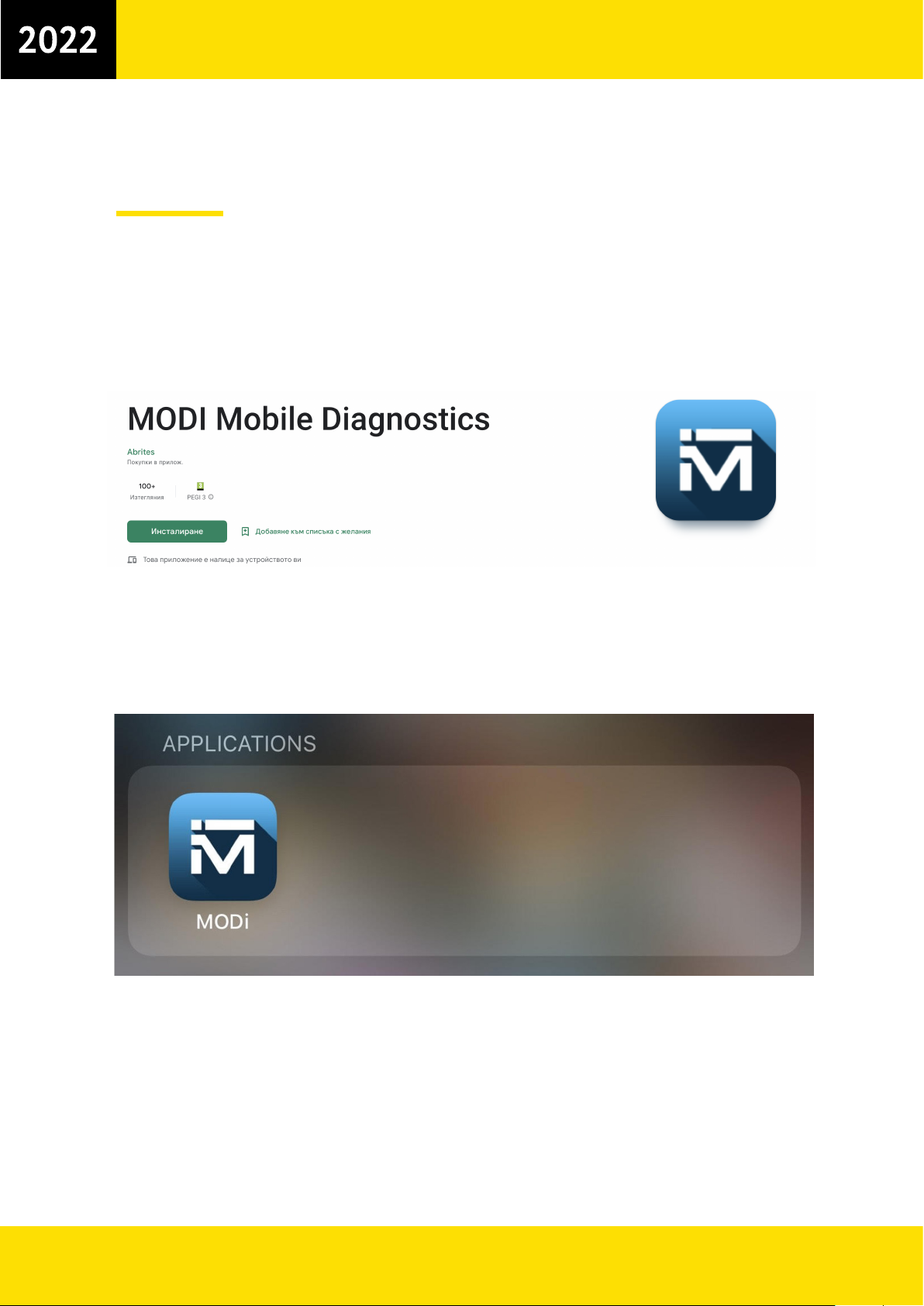
Once the MODI is received, you can download the Abrites MODI software, as well. It looks like this in the
Google Play Store®, Apple App Store®, or App Gallery®:
After installing the Abrites MODI application software, it will appear in the list of installed applications
of either the Android, iOS, or HarmonyOS based mobile device.

7
Abrites MODI User Manual
modi.abrites.com
2. Setting your MODI Interface up
To begin working with the Mobile Diagnostics Interface, it will be necessary to first enable Bluetooth on
the given Android, IOS, or HarmonyOS based mobile device. This can be done by going to the settings
menu, then bluetooth, then enable. Once the bluetooth is enabled the MODI application can be opened
and set up.
Once the software is opened , the following two options will be provided:
The first one is to connect to the MODI device (therefore a scanning process is automatically launched
by the application, in order for your device to be discovered). This could be done by simply pressing
the “Connect” button which will be displayed on the provided device. Keep in mind that in order for
the device to be discovered by the application it needs to be supplied with power*. In order to supply
your MODI device with power, you will need to insert it in the vehicle’s OBD II port. Following the
scanning process, a list device window will appear, where the personal MODI of the user should be
selected.
The second option that will be provided is to run a DEMO process. The DEMO process does not
require the MODI device to be inserted in the vehicles OBDII port.

8
Abrites MODI User Manual
modi.abrites.com
Once the MODI is connected to a power supply and the Bluetooth of the device used is ON, the MODI
device which is going to be used could be selected. The Mobile Diagnostics Interface can now be used.
The next step is to select the brand which is going to be worked with, after that the MODI will start an
automatic vehicle identification.

9
Abrites MODI User Manual
modi.abrites.com
If you press and hold on a selected logo an additional window is
going to appear, which will enable you to buy the full functions for
the given brand
Once the vehicle is identified, the following screen with advanced
diagnostic and coding options will be displayed:

10
Abrites MODI User Manual
modi.abrites.com
III. Using Abrites MODI Device in a vehicle
From this point on, the MODI device is going to communicate via the bluetooth connection made with
the mobile device.
After the Advanced Diagnostics option is selected, the Mobile Diagnostics Interface is going to run a
diagnostic on the vehicle, providing information concerning the number of fault codes in the system. Ad-
ditionally, the tool can also display information concerning the status of the modules in the vehicle. From
there on, in order for the processed fault codes to be cleared, the “Clear all” button should be pressed.
This button should be essentially found on the bottom of the mobile device display.
Table des matières
Autres manuels ABRITES Équipement de diagnostic