
AAG Solo Manuel utilisateur

SOLO
SOLO
Users manual
Users manual
SOLO - Users manual v. 1.4 1 30. Sep. 2016

I n d e x
1. Physical installation
2. Accessin the data
2.1. Main web pa e
2.2. Sin le Line Data files
2.3. ScopeDome data file
2.4. AAG CloudWatcher “Master”
2.5. Data lo er (USB pen)
3. Confi uration
4. “Hidden” features
4.1. Push notifications
4.2. Chan in DNS server address
4.3. Rollin back to an older version
5. Other interestin facts about the Solo
SOLO - Users manual v. 1.4 2 30. Sep. 2016

Thank you for your purchase of the AAG CloudWatcher “Solo”!
The “Solo” has been desi ned to improve the overall usefulness of the AAG CloudWatcher,
monitorin it, adjustin the heater, and constantly publishin information accessible in a
variety of ways.
1)Physical installation
The “Solo” has to be installed indoors. The installation cannot be more easy:
unplu your CloudWatcher from the power supply (if applicable)
usin the same power supply, power the “Solo” - any of the two plu s will
do
with the included (short) cable, join the other jack plu in the “Solo” with
the CW
Attach the SubD-9 (serial) from the CW to the “Solo”
and, of course, connect the Solo to your local network usin a standard
RJ45 cable (not supplied)
… that's it. In a few seconds the “activity” LED in the “Solo” will start blinkin (slowly),
showin it is communicatin with the CloudWatcher
SOLO - Users manual v. 1.4 3 30. Sep. 2016

2)Accessing the data
Now that the “Solo” is up and runnin , and connected to your local network, it will fetch an IP
address (automatically, usin DHCP, as standard in the vast majority of networks) and start
publishin information in a variety of ways.
There is a separate document explainin the procedure to enable your Solo bein accessed
from the internet.
2.1) Main web pa e
From your web explorer, now you can type: “http://aa solo” (in the address bar,
not in
Goo le!
), and you'll see the main “Solo” pa e:
SOLO - Users manual v. 1.4 4 30. Sep. 2016

There are a few thin s worth explainin in this pa e:
in the
upper left side
, the current readin s are displayed. Hoverin the mouse pointer
over the icons will display the readin numerically.
at its
leftmost side
, some buttons:
–stop / start auto update (will refresh every 60 seconds if enabled)
–reload data now
in the
upper ri ht
, a lo pane with recent information
coverin the rest (and main portion) of the pa e, the raphs with information coverin
the current day and the day before.
Also at its
leftmost side
, some buttons:
–stop / start auto update (will refresh every 60 seconds if enabled)
–reload data now
–show / hide yesterday's data
–show / hide the three color back round (matchin the 3 levels of each
readin )
–show / hide a dotted line at the current “unsafe” settin
–choose between metric and imperial units
Last, in the lower ri ht side of the pa e the lan ua e can be chan ed, for the moment Auto,
En lish and Spanish are available.
This pa e can be made accessible from the Internet; the way of doin so varies from router
to router, but basically involves settin up a “NAT” rule for incomin connections at a iven
port to be redirected to the “Solo” – and of course the “Solo” needs to have a fixed IP
address. You can check our runnin unit at:
SOLO - Users manual v. 1.4 5 30. Sep. 2016

http://aa solo.lunatico.es:10800/
2.2) Sin le Line Data files
Some pro rams and drivers (at least CCDAutopilot and CCDCommander in remote mode, and
also our own and Chris Rowland's ASCOM safety monitor driver), just need to access a file
with weather data formatted in a specific way.
The “Solo” does publish this file, and thus you can add weather safety just accessin it from
the network. Browse the network to the “aa solo” computer (by the way, user “pi”, password
“cloudwatcher” ):
SOLO - Users manual v. 1.4 6 30. Sep. 2016

For et the “tmp” folder, and o to the “AAGSolo” one:
There are quite a few files, but it is “aa _sld.dat” (meanin AAG Sin le Line Data) the one
we're lookin for.
There's also a file called “aa _sldc.dat”, bein the same but with a comma “,” separatin the
decimal numbers. I've check that at least CCDAP, if installed in a machine with a locale usin
that comma to separate decimal numbers, needs this file.
So, you just have to make your automation software (or ASCOM driver) point to this shared
folder. Important, dependin on the Windows version, you may have to connect to the
“aa solo” from the Windows explorer at least once at the start of every session.
SOLO - Users manual v. 1.4 7 30. Sep. 2016

2.3) ScopeDome data file
Accesin the network in the same way, we can find a special file for the ScopeDome software,
namely “scopedome.csv”:
… just select this file in your ScopeDome software, Confi , Cloud Sensor Confi (Current
Cloud Sensor Status File Name)
SOLO - Users manual v. 1.4 8 30. Sep. 2016

2.4) AAG CloudWatcher “Master”
The “Solo” also behaves as a CloudWatcher Windows application in Master mode, so you can
connect other instances of the Windows software, runnin as Remote, to the “Solo”.
ote: to chan e your current Windows software from Master to Remote, you'll have to run
a small utility called “AAG_ResetParameters” included in your current software. Browse your
hard disk to the installation folder, typically C:\Pro ram Files\AAG_CloudWatcher or
C:\Pro ram Files (x86)\AAG_CloudWatcher, to find it. Reset all parameters (please take note
of your current K-factors and Limits settin s before doin so!), and runnin your software
a ain will ask “Is this a Master or Remote installation”
Browse the network a ain to the aa solo machine (reminder, user “pi” password
“cloudwatcher”), and you'll find the AAG_CWNetData.dat file:
SOLO - Users manual v. 1.4 9 30. Sep. 2016
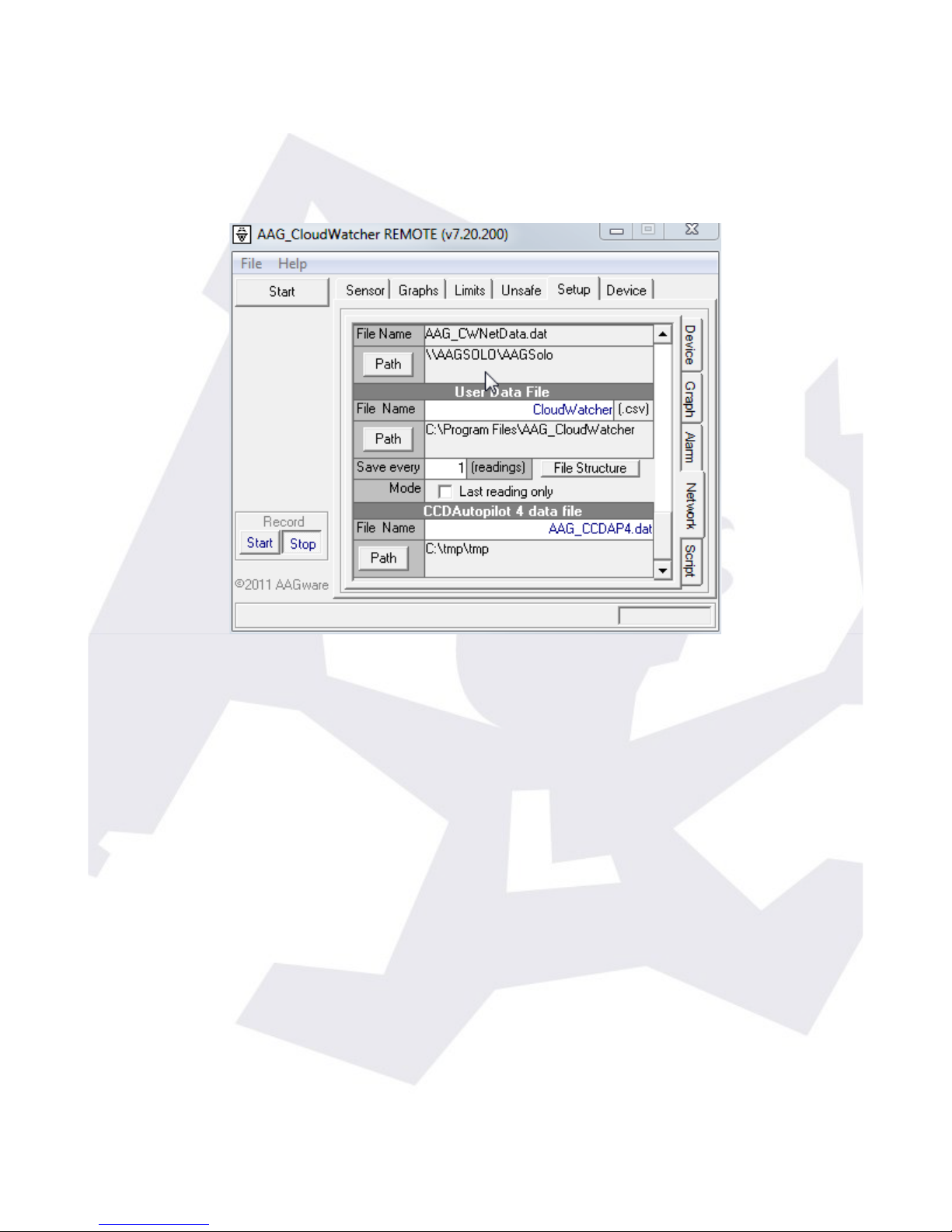
This is the file your “remote” AAG pro rams will need to operate. Selectin , from those
applications, the folder containin it will allow them to run.
As said before, dependin on the Windows version, you may have to connect to the “aa solo”
from the Windows explorer at least once at the start of every session.
SOLO - Users manual v. 1.4 10 30. Sep. 2016
Table des matières
Manuels Équipement de laboratoire populaires d'autres marques


Agilent Technologies
Agilent Technologies 5800 ICP-OES Manuel utilisateur

Endress+Hauser
Endress+Hauser Cleanfit CPA875 Manuel utilisateur

NI
NI PXI-5422 Manuel

Collomix
Collomix Aqix Manuel utilisateur

SPEX SamplePrep
SPEX SamplePrep 6875 Freezer/Mill Series Manuel utilisateur

Ocean Insight
Ocean Insight FLAME-NIR+ Manuel utilisateur


