
A4Tech G7-600DX Manuel utilisateur

2.4G RF MOUSE
User Guide
MODEL: G7-600DX

- 2 -
THIS DEVICE COMPLIES WITH PART 15 OF THE FCC RULES. OPERATION IS SUBJECT TO THE FOLLOWING
TWO CONDITIONS: (1) THIS DEVICE MAY NOT CAUSE HARMFUL INTERFERENCE AND (2) THIS DEVICE MUST
ACCEPT ANY INTERFERENCE RECEIVED, INCLUDING INTERFERENCE THAT MAY CAUSE UNDESIRED
OPERATION.
Federal Communications Commission Requirements
The equipment has been tested and found to comply with the limits for Class B Digital Device, pursuant to part 15 of the
FCC Rules. These limits are designed to provide reasonable protection against harmful interference in a residential
installation. This equipment generates uses and can radiate radio frequency energy and, if not installed and used in
accordance with the instruction, may cause harmful interference to radio communication. However, there is no guarantee
that interference will not occur in a particular installation. If this equipment does cause harmful interference to radio or
television reception, which can be determined byturning the equipment off and on, the user is encouraged to try to correct
the interference by one or more of the following measures:
●Reorient of relocate the receiving antenna.
●Increase the separation between the equipment and receiver.
●Connect the equipment into an outlet on a circuit different from that to which the receiver is connected.
●Consult the dealer or an experienced radio/TV technician for help.
THE CHANGES OR MODIFICATIONS NOT EXPRESSLY APPROVED BY THE PARTY RESPONSIBLE FOR
COMPLIANCE COULD VOID THE USER’S AUTHORITY TO OPERATE THE EQUIPMENT.
This device complies with Part 15 of the FCC Rules. Operation is subject to the following two conditions:
(1) This device may not cause harmful interference, and
(2) This device must accept any interference received, including interference that may cause undesired operation.
FCC Radiation Exposure Statement
The equipment complies with FCC radiation exposure limits set forth for uncontrolled equipment and meets the FCC radio
frequency (RF) Exposure Guidelines in Supplement C to OET65. The equipment has very low levels of RF energy that it
is deemed to comply without testing of specific absorption ratio (SAR).

- 3 -
About “Screen Capture Tool”
Bundles with value-added functions, such as Screen capture, TutorPen, Keyboard/Mouse Simulation,
16-in-One, 4-way Wheel, etc. Best software for your every needs.
Define the Mouse Buttons
1. Click the icon at the system
tray to open the “Main Menu”.
2. Select the function you preferred
for each button from the pull-down
function list.
3. Store and apply the setting by
clicking "Apply".
4. Click “Exit”.
5. Set “Function/Key Reminder” by
clicking at the system tray.

- 4 -
Set 5 functions in ONE button
You can define 5 functions in mouse button , such as Screen capture, TutorPen, Keyboard/Mouse
Simulation, 16-in-One, 4-way Wheel, etc.
How to shift / apply 5 functions
1) Press/hold the left button and click the right button to shift 5 chosen functions. and the function info
will pop up (as below figure)
2) Press mouse button to perform the chosen functions.

- 5 -
Capture Screen
How to set:
Select "Screen Capture" from the function list of the button .
Usage:
1) Press/hold the mouse button and drag the mouse cursor to the opposite corner and form a box
around your object.
Edit Tool
2) Click on “Edit Tool” and paste (Ctrl+V) it to any document or during online chatting. after editing
your screenshot (Video capture is only supported on Vista or above)
- 6 -
Use the Wireless Mouse for your Presentation
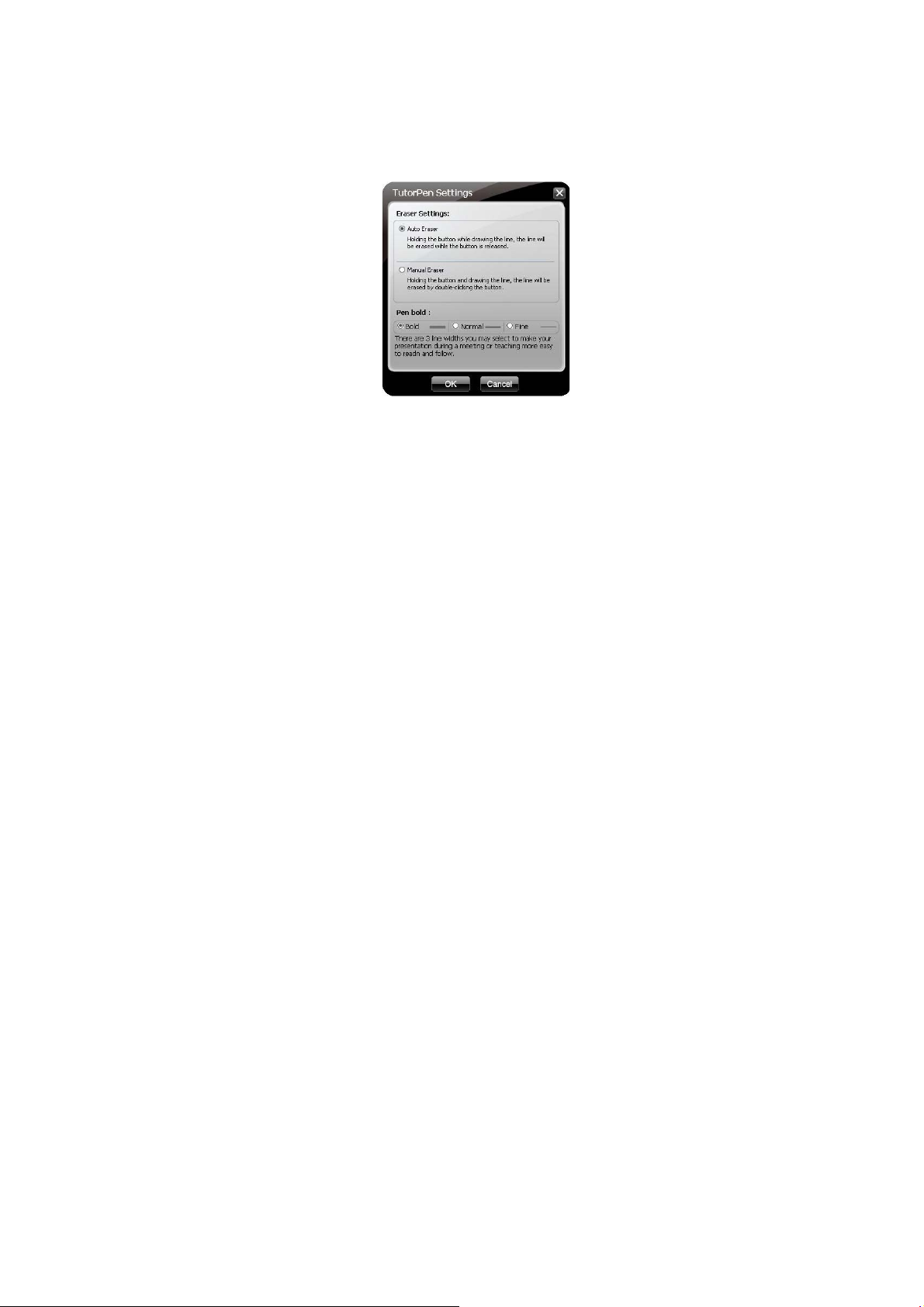
1. TutorPen
Press/hold the defined button to draw a line to remark the objects on your screen. You can eliminate
the lines by double or triple click on the defined button.
You may set the line width in the "TutorPen Setting".

- 7 -
Open a file or a program
You may set up the defined buttons in association to the documents, programs or shortcuts required during
your presentation. Just press the buttons to open them instantly.
Gesture 16-in-1
Select “Gesture 16-in-1” from the pull-down
function list, the setup box will pop up.
You may set up 16 user-friendly
functions/commands to the defined gesture
button or , including the functions of
Keyboard/Mouse simulation, Open a file, Office,
Text, Multimedia, Internet, etc.
Usage: Press/hold the gesture button or
and draw a line in the direction described to

- 8 -
perform the preset functions/commands.
Setup Box
Example: Using as “Zoom In” by default, just press/hold the Gesture button or and draw a
line as shown below, and then release the button, the picture or the document will be zoomed in
immediately.

- 9 -
a. Press/hold the gesture button or
b. Draw the line as the arrow direction
c. Release gesture button or
Then the picture has been zoomed in.
Original Zoom In
Adjust Mouse Report Rate
Click the icon " " at the system tray and select "Report Rate" to adjust mouse report rate.

- 10 -
Change the Mouse Wheel to 4-way Wheel
Click the icon at the system tray and select "4-way Wheel".
Table des matières
Autres manuels A4Tech Souris sans fil


